
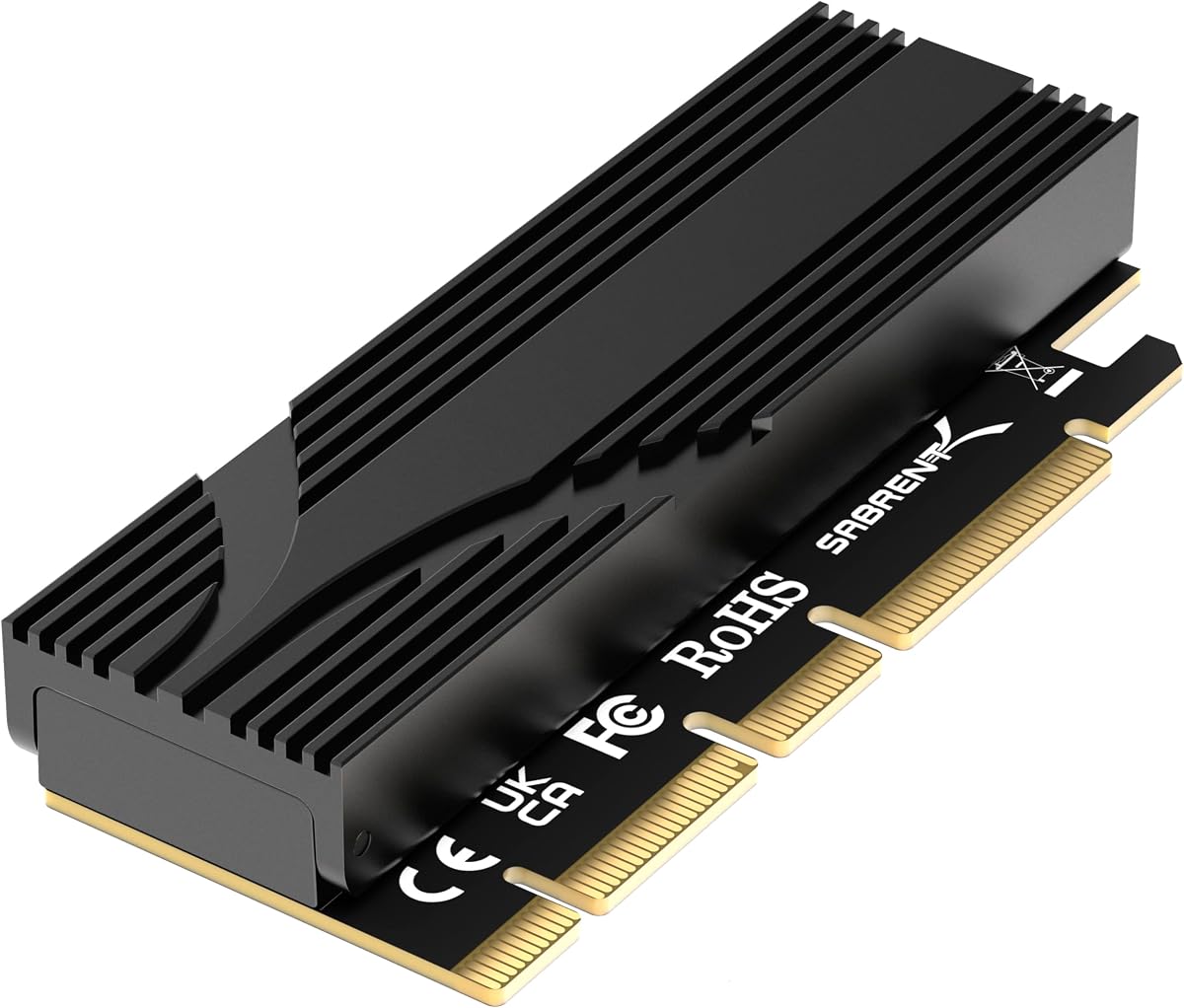
GLOTRENDS M.2 NVMe to PCIe 4.0 X4 Adapter with Heatsink for NVMe SSD
4.6Editor score
Includes low-profile bracket
Supports up to 4TB
Effective thermal cooling
This guide compares the top 10 M2 Pcie Adapter options available in October 2026 to help you choose the right expansion card for your NVMe SSD needs.
Finding the right M2 Pcie Adapter is crucial for expanding your storage capacity without upgrading your entire system. These adapters allow you to connect high-speed NVMe SSDs to standard PCIe slots, unlocking significant performance gains for workstations and gaming rigs alike.
We have carefully evaluated ten leading adapters based on compatibility, thermal management, build quality, and ease of installation. Our analysis covers single and multi-drive solutions, ensuring you find a match whether you need simple storage expansion or complex RAID configurations for professional tasks.
Each pick highlights specific strengths like heatsink design, bifurcation support, and form factor flexibility. Keep in mind that availability and pricing fluctuate frequently, so always verify the current listings before making your final purchase decision to ensure you get the best value.
4.6Editor score
4.6Editor score

4.4Editor score
The following table provides a side-by-side comparison of the top ten M2 Pcie Adapter models. This overview helps you quickly identify key specifications like supported drive types, slot compatibility, and thermal solutions to streamline your selection process.


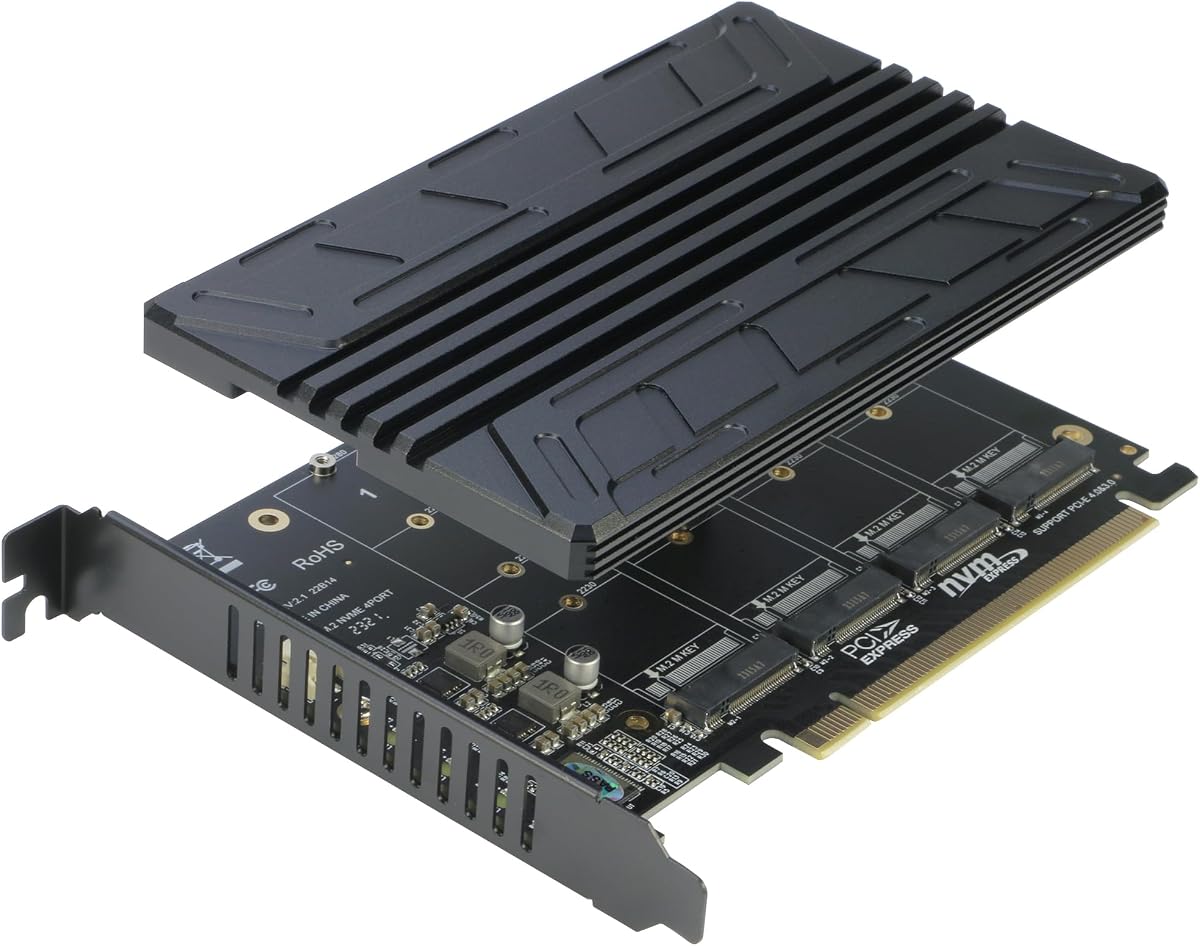


The SABRENT M.2 NVMe SSD to PCIe x16 Adapter Card stands out as the top choice for users planning ahead for future hardware. With a rating of 4.6, it offers a robust solution for integrating high-speed drives into your system without complex motherboard configurations.
We may earn a commission when you buy through this link, at no additional cost to you.
Its standout quality is the support for PCIe Gen5 speeds, ensuring you can utilize the latest SSD technology when your motherboard allows. The tool-free installation design eliminates the need for tiny screws, making upgrades quick and hassle-free while the aluminum heatsink keeps temperatures in check without adding noise.
While it excels in performance and ease of use, it is limited to a single drive and does not support SATA M.2 models. This trade-off is acceptable for most users seeking a simple, high-performance expansion slot rather than a multi-bay storage array.
If you value future-proofing and simplicity, this adapter is the ideal purchase. It provides a stable, fast connection for your primary NVMe drive, making it a reliable choice for gaming, content creation, and professional workloads.
Supports PCIe Gen5 for up to 16GBps bidirectional speeds when paired with compatible motherboards.
Drop the SSD in and lock it down without hunting for a tiny M.2 screw or a screwdriver.
We may earn a commission when you buy through this link, at no additional cost to you.
The GLOTRENDS M.2 NVMe to PCIe 4.0 X4 Adapter offers exceptional value for budget-conscious builders who still demand high performance. With a solid 4.6 rating, it bridges the gap between cost and capability, making it a favorite among DIY enthusiasts.
We may earn a commission when you buy through this link, at no additional cost to you.
This adapter turns your motherboard's PCIe x4, x8, or x16 slot into an M.2 Key M slot for NVMe SSD installation. It comes with heatsinks that can cool M.2 SSDs by 5 to 20 degrees Celsius, ensuring stable performance during heavy workloads without thermal throttling.
While it is priced competitively, it does not support PCIe x1 slots, which limits its use in systems with only small expansion slots. However, for those with standard full-size slots, the inclusion of low-profile brackets and lifetime tech support adds significant long-term value.
For users looking to add fast storage without breaking the bank, this adapter is a fantastic choice. It supports capacities up to 4TB and works with various operating systems, making it a versatile addition to any PC build.
Comes with heatsinks that cool M.2 SSDs by 5 to 20 degrees Celsius effectively.
Includes 12cm regular and 8cm low-profile brackets for any PC frame.
We may earn a commission when you buy through this link, at no additional cost to you.
The ASUS Hyper M.2 X16 PCIe 3.0 X4 Expansion Card V2 is designed for power users who need massive storage capacity and RAID capabilities. Its 4.4 rating reflects its professional-grade features tailored for workstations and servers requiring high throughput.
We may earn a commission when you buy through this link, at no additional cost to you.
This card supports four additional NVMe M.2 drives using Intel VROC, enabling transfer speeds up to 128 Gbps. A stylish heatsink and integrated blower-style fan prevent M.2 throttling, ensuring consistent performance even under sustained heavy loads.
While it offers immense power, it requires motherboard support for PCIe x16 bifurcation to function correctly. This limitation means it is not suitable for every consumer motherboard, but for those with compatible hardware, the performance gains are substantial.
If you need to build a high-speed storage array for video editing or virtualization, this adapter is unmatched. It provides the bandwidth and cooling necessary to keep four drives running at peak efficiency without overheating.
Supports four additional NVMe M.2 drives using Intel VROC for transfer speeds up to 128 Gbps.
Integrated blower-style fan prevents M.2 throttling during intensive tasks.
We may earn a commission when you buy through this link, at no additional cost to you.
The StarTech M.2 PCIe SSD Adapter is a trusted choice for IT professionals who prioritize reliability and broad compatibility. With a 4.6 rating, it has been a go-to solution for over 30 years of professional use.
We may earn a commission when you buy through this link, at no additional cost to you.
This adapter connects PCIe M.2 SSDs to your computer through PCI Express, supporting both NVMe and AHCI drives. It is compatible with PCIe 3.0 motherboards and backward compatible with older versions, ensuring it works across a wide range of legacy and modern systems.
While it lacks a built-in heatsink and limits speeds to PCIe 3.0, its broad compatibility and robust warranty make it a safe investment. The inclusion of low-profile brackets ensures it fits in small form-factor computers without issues.
For enterprise or office environments where stability is key, this adapter is a solid option. It provides a hassle-free setup with native OS support and comes backed by 24/5 North America-based multi-lingual assistance.
Compatible with PCIe 3.0 motherboards and backward compatible with PCIe 2.0 and 1.0.
Backed by 2 years including free 24/5 North America based multi-lingual assistance.
We may earn a commission when you buy through this link, at no additional cost to you.
The Dual M.2 PCIE Adapter is designed for users who need flexibility to run both SATA and NVMe SSDs simultaneously. With a 4.3 rating, it offers a practical solution for those mixing drive types for different storage needs.
We may earn a commission when you buy through this link, at no additional cost to you.
This adapter supports two M.2 SSDs simultaneously, with one interface for SATA and one for NVMe. It includes two heat sinks and utilizes a PCB with 24 X 5 copper holes for effective ventilation, ensuring thermal stability for both drives.
While it provides excellent versatility, using a SATA drive requires a separate SATA cable connection, adding complexity to the build. Additionally, LED indicators provide visual status updates but may not be necessary for all users.
If you have existing SATA drives you wish to repurpose in a PCIe slot, this adapter is a useful tool. It supports multiple drive sizes and includes both regular and low-profile brackets for flexible installation.
Supports two M.2 SSDs simultaneously (one SATA interface and one NVMe interface).
Includes LED power and data transfer status indicators for easy monitoring.
We may earn a commission when you buy through this link, at no additional cost to you.
This M.2 NVMe to PCIe X4 Adapter offers a comprehensive accessory kit that simplifies installation for users of all skill levels. With a 4.6 rating, it provides reliable performance for both Gen3 and Gen4 NVMe SSDs without breaking the budget.
We may earn a commission when you buy through this link, at no additional cost to you.
The package includes not just the adapter and heatsink but also a screwdriver, thermal pads, and brackets. This complete kit ensures you have everything needed to install your drive securely without searching for additional tools.
While it performs well with modern systems, older Windows 7 versions may require additional drivers for NVMe support. However, for most users on Windows 11 or Linux, the plug-and-play experience is smooth and driver-free.
If you want an all-in-one solution that covers all bases, this adapter is a great choice. It supports various OS environments and ensures your drive stays cool during heavy usage.
Includes screwdriver, thermal pads, and brackets for hassle-free installation.
Supports Windows 11, Server 2012 R2, Linux, Fedora, SUSE, Ubuntu, and Red Hat.
We may earn a commission when you buy through this link, at no additional cost to you.
The RIITOP Quad NVMe PCIe Adapter allows you to add four NVMe SSDs simultaneously via a single PCIe slot. With a 4.4 rating, it is a powerful tool for those needing expanded storage capacity in a compact form factor.
We may earn a commission when you buy through this link, at no additional cost to you.
Designed with a 0.32-inch heatsink, it prevents throttling and keeps each SSD at optimal operating temperatures. Individual LED indicators show the working status of each drive, making it easy to identify issues quickly without software tools.
It requires motherboard support for PCIe x16 bifurcation to be set as x4x4x4x4 in BIOS. This technical requirement may be a hurdle for casual users but is manageable for those familiar with system configurations.
For users building a media server or a workstation with heavy data needs, this adapter offers great scalability. Just ensure your motherboard supports bifurcation and consider using third-party software for RAID configurations.
Individual LED indicator design shows each SSD's working status for quick troubleshooting.
Compatible with M.2 PCIe NVMe SSDs in all sizes from 2230 to 2280.
We may earn a commission when you buy through this link, at no additional cost to you.
The ELUTENG M.2 NVMe PCIe Adapter is designed for systems where space is at a premium. With a 4.4 rating, it offers a reliable connection for NVMe drives with a focus on safe voltage regulation and compact design.
We may earn a commission when you buy through this link, at no additional cost to you.
Solid-state capacitors are used for voltage regulation, preventing current waves from damaging your SSD during operation. This safety feature extends the life of the drive and ensures stable performance even during unexpected power fluctuations.
It supports PCIe x1, x4, x8, and x16 slots, making it versatile for many motherboard configurations. However, booting from the SSD requires your BIOS to support PCIe booting which may not be available on older boards.
If you are building a small form-factor PC or need a reliable addition to an office machine, this adapter is an excellent choice. The aluminum heatsink ensures your drive stays cool in tight enclosures.
Solid-state capacitors prevent current waves from being generated in the event of SSD damage.
Includes low-profile bracket for installation in small form-factor computers.
We may earn a commission when you buy through this link, at no additional cost to you.
This M.2 NVME to PCIe 4.0 x4 Adapter is highlighted for its effective aluminum heatsink solution. With a 4.6 rating, it ensures your SSD operates within safe temperature ranges to prevent performance drops during intensive tasks.
We may earn a commission when you buy through this link, at no additional cost to you.
The aluminum heatsink can reach a 5-20 degree Celsius cooling effect, which is significant for high-performance drives. It supports 2280, 2260, 2242, and 2230mm sizes, making it compatible with most common consumer SSDs.
While it lacks a low-profile bracket option, its performance focus makes it ideal for full-tower cases where airflow is less constrained. The support for PCIe 4.0 ensures you get the maximum speed out of modern SSDs.
If you are concerned about thermal throttling in a passive cooling environment, this adapter is a smart pick. It provides a simple and effective way to keep your storage cool and running fast.
Equipped with aluminum heatsink capable of reaching a 5-20 degree Celsius cooling effect.
Supports PCIe x4, x8, and x16 slots for flexible installation.
We may earn a commission when you buy through this link, at no additional cost to you.
The GLOTRENDS PA09-X1 M.2 NVMe to PCIe 4.0 X1 Adapter is a unique solution for systems with limited full-size expansion slots. With a 4.5 rating, it lets you utilize an otherwise unused PCIe x1 slot for valuable storage expansion.
We may earn a commission when you buy through this link, at no additional cost to you.
The main advantage is that it uses the free motherboard PCIe x1 slot instead of occupying the x16 slot, leaving it available for your graphics card. This is perfect for systems where the primary GPU needs full priority over expansion slots.
However, the maximum bandwidth is limited to that of PCIe x1, which means it cannot reach the full speed of x4 adapters. For storage drives not used for booting, this limitation is rarely a practical issue.
If you need to add fast secondary storage without crowding your primary slots, this adapter is a clever choice. It supports large capacities up to 4TB and works with various operating systems seamlessly.
Uses the free motherboard PCIe x1 slot instead of occupying the x16 slot for your graphics card.
No capacity limit for M.2 NVMe SSDs with support for 2T and 4T drives.
We may earn a commission when you buy through this link, at no additional cost to you.
Selecting the right M2 Pcie Adapter requires understanding your specific hardware needs and system limitations. This guide covers the critical factors you should evaluate to ensure compatibility and performance.
The generation of your PCIe slot (Gen3, Gen4, or Gen5) dictates the maximum speed your adapter can deliver. Always check your motherboard specifications to ensure the adapter you choose supports at least the same generation as your slot for optimal performance. Using a Gen5 adapter in a Gen3 slot will limit speeds to Gen3 capabilities.
Prioritize an adapter that matches or exceeds your motherboard's PCIe generation to prevent bottlenecks. While backward compatibility exists, forward compatibility ensures future-proofing if you plan to upgrade your CPU or motherboard later.
If you are using a multi-drive adapter like those holding four NVMe drives, your motherboard must support PCIe bifurcation. This feature allows a single physical PCIe x16 slot to be split into multiple x4 lanes for multiple devices. Without BIOS support, the system will only recognize the first drive.
For single-drive adapters, bifurcation is not required, making them easier to install on most standard consumer motherboards. Always consult your motherboard manual to confirm lane splitting support if you need multiple drives on one card.
Ensure the adapter supports the type of M.2 SSD you intend to install, specifically checking for M-key NVMe versus B+M-key SATA. Many high-speed adapters only support NVMe drives and will not recognize SATA-based M.2 drives. Mismatched interfaces mean the drive will not function even if physically connected.
Verify the product description explicitly states support for your drive type before buying. Most adapters specify whether they are for NVMe only or if they include SATA support, which is crucial for repurposing older drives.
High-speed NVMe SSDs generate significant heat which can lead to thermal throttling and reduced performance. Adapters with aluminum heatsinks or fans help maintain optimal temperatures during heavy workloads. Passive cooling is usually sufficient for standard use, but active cooling is better for sustained operations.
Look for adapters with integrated thermal pads and heatsinks to keep your drive safe without adding noise. A good thermal solution extends the lifespan of your SSD and ensures consistent read/write speeds over time.
The physical size of the adapter matters for fitting into your PC case, especially in small form-factor builds. Most adapters come with both full-height and low-profile brackets to accommodate different chassis sizes. Ensure the card length does not conflict with other components like large CPU coolers.
Measure your available expansion slot space before purchasing to avoid installation issues. A low-profile option is essential if you are using a compact case or need to fit multiple cards in a tight space.
Installation complexity varies by model, with some offering tool-free designs and others requiring screws and drivers. Tool-free options save time and effort by allowing you to secure the drive without hunting for tiny screws. This is particularly helpful for users who frequently swap out drives.
Choose an adapter that comes with all necessary hardware like screws, screws, and thermal pads. A complete kit reduces frustration and ensures you have everything needed to finish the build on the first try.
Most modern adapters support Windows 10 and 11 without extra drivers but older systems like Windows 7 may need manual driver installation. Ensure the adapter is compatible with your current OS to avoid boot issues or lack of recognition. Linux users should check for kernel compatibility as well.
Prefer adapters that claim plug-and-play functionality for your specific operating system. This saves setup time and ensures stability without needing to hunt down legacy drivers from manufacturer websites.
A good warranty and technical support can save you from future headaches if you encounter compatibility issues. Brands that offer multi-lingual assistance and multi-year warranties show confidence in their product quality. Look for sellers that provide clear documentation for troubleshooting.
Check the warranty terms before purchasing to see if they cover accidental damage or just defects. Reliable support means you can get help quickly if your system does not recognize the new storage drive.
Start by turning off your computer and unplugging the power cord to ensure safety before opening your case. Locate an available PCIe x4, x8, or x16 slot on your motherboard depending on the adapter you purchased. Remove the rear panel slot covers on your PC case to make room for the bracket.
Insert the adapter firmly into the PCIe slot until the locking mechanism clicks into place and secure it with a screw to prevent movement. If your adapter uses a tool-free design, simply slide the NVMe SSD into the slot and lock it down without needing extra screws. Ensure the drive sits flat and flush against the card.
Close the case, reconnect power, and boot up your computer. Check your BIOS or Windows Disk Management to see if the new drive is detected. If it is not recognized, check that the SATA cables are properly connected if your model requires them or verify bifurcation settings in BIOS.
Not all M.2 SSDs are compatible. Most adapters support M.2 NVMe drives but do not support M.2 SATA drives. Always check the label on your drive to confirm it is NVMe before purchasing an adapter. Using a SATA drive in an NVMe-only adapter will result in it not being recognized by the system.
Most modern adapters are plug-and-play and do not require driver installation on Windows 10 or 11. However, older systems like Windows 7 may need specific NVMe drivers to recognize the drive. Always check the manufacturer website for any required software if you are using legacy systems.
Ideally, no. A quality adapter allows your SSD to run at full speed. However, if you use a Gen3 adapter in a Gen4 slot, you are limited to Gen3 speeds. Ensure the adapter supports the same or higher PCIe generation as your motherboard slot to avoid performance bottlenecks.
Yes, provided your motherboard BIOS supports booting from PCIe devices. Most modern motherboards allow this feature, but older models may not. Check your BIOS settings for NVMe boot options if you plan to use the adapter drive as your primary system disk.
Some adapters support multiple drives but require motherboard bifurcation support to function correctly. Single-drive adapters do not need this feature. If you plan to use a multi-drive card, verify your motherboard manual for PCIe x16 bifurcation support before buying.
Most M2 Pcie Adapters draw power directly from the PCIe slot and do not need external power cables. However, some high-performance multi-drive cards might require additional power connections. Always check the product specifications to confirm if extra power cables are included.
In conclusion, the M2 Pcie Adapter market offers a wide range of options catering to different needs from budget storage to high-end RAID arrays. The top picks like the SABRENT Gen5 Adapter and GLOTRENDS Gen4 Adapter provide excellent performance and value for most users.
When choosing, prioritize compatibility with your motherboard's PCIe generation and bifurcation support if you plan on multiple drives. Thermal management is also crucial to ensure your SSDs run efficiently and last long. Select an adapter that fits your case size and offers the features you truly need.
Prices and availability change frequently so always check current listings before finalizing your purchase. By selecting the right adapter for your setup, you can unlock significant storage performance and keep your system ready for future upgrades. We hope this guide helps you make a confident and informed decision.