
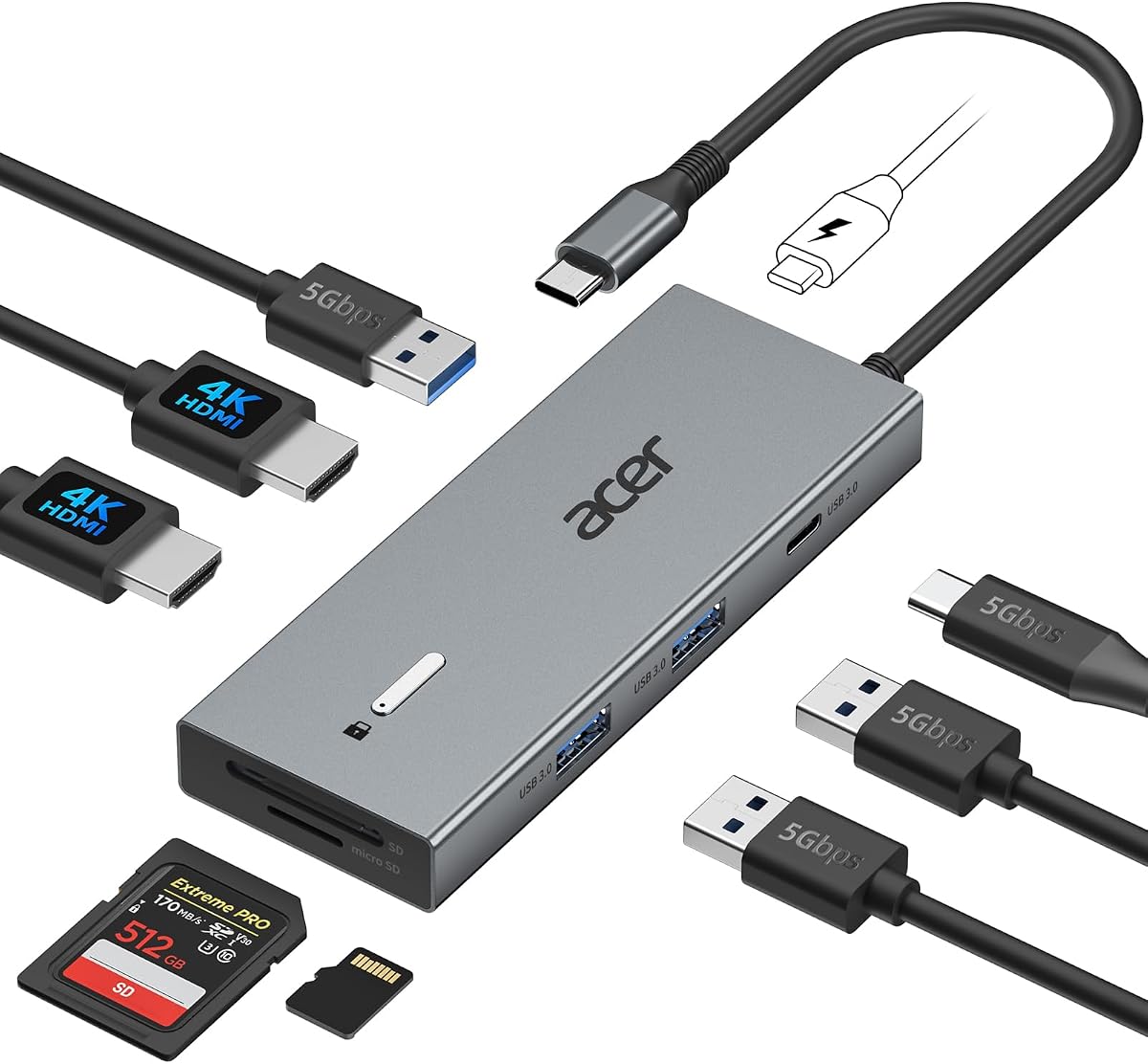
Selore USB C Docking Station Dual Monitor, USB C to Dual HDMI Adapter
4.4Editor score
Dual 4K@60Hz HDMI ports
100W Power Delivery input
Fast USB 3.0 data transfer
Discover the top docking stations with 2 HDMI ports for dual monitor setups. Compare features, performance, and compatibility to find the best hub for your
Finding a reliable docking station with 2 HDMI ports is essential for modern professionals seeking dual monitor productivity. These devices transform a single USB-C connection into a full workstation, enabling seamless multitasking and efficient workflow management across multiple screens.
We evaluated ten top-rated models based on video output quality, power delivery capabilities, and overall connectivity options. Each product was analyzed for compatibility with major operating systems and real-world performance under heavy multitasking loads to ensure accurate recommendations for buyers.
Each pick highlights unique strengths, from budget-friendly hubs to premium all-in-one solutions designed for power users. Note that prices and availability change frequently, so verify current listings before purchasing to ensure you get the best value for your specific workspace needs.
4.4Editor score

4.5Editor score

4.5Editor score
This side-by-side comparison evaluates all ten featured docking stations across critical performance metrics. We analyzed video resolution support, power delivery wattage, port variety, and system compatibility to help you identify the ideal model for your specific laptop and workflow requirements.


The Anker 8-in-1 USB C Hub stands out as a top choice for users needing dual HDMI connectivity. With a solid 4.5 rating, it offers reliable 4K video output and essential ports for everyday productivity. Its robust build quality ensures stable performance during long work sessions.
We may earn a commission when you buy through this link, at no additional cost to you.
Key strengths include its ability to deliver up to 85W of power to your laptop while maintaining high-speed data transfer. The inclusion of an Ethernet port ensures stable internet connections, which is crucial for video conferencing. Additionally, the SD card reader provides quick access to media files without extra cables.
Honest trade-offs involve macOS limitations where dual monitors only mirror rather than extend. Also, the power adapter is sold separately. These are acceptable for most users who prioritize reliability and connectivity options over macOS-specific features or included accessories.
Ideal for Windows and ChromeOS professionals needing a dependable workstation setup. This hub delivers consistent performance for multitasking across two screens. We recommend it for anyone seeking a balance of features, durability, and brand trust in a dual HDMI docking station.
Stream or mirror content to two devices in stunning 4K resolution for enhanced multitasking efficiency.
High-speed pass-through charging up to 85W keeps your laptop powered during intensive workloads.
We may earn a commission when you buy through this link, at no additional cost to you.
The Acer 13-in-1 Docking Station offers impressive triple display capabilities for Windows laptops. Rated highly by users, it enables a command-center workflow with 2 HDMI and 1 DisplayPort outputs. This makes it ideal for traders, developers, or anyone needing extensive screen real estate.
We may earn a commission when you buy through this link, at no additional cost to you.
Its standout feature is the included 110W power adapter, ensuring stable power for heavy loads without extra purchases. The security slot allows physical locking to desks, adding safety in shared workspaces. The aluminum body helps dissipate heat effectively during prolonged use.
Limitations include macOS restrictions where extended desktop mode is unsupported. The dock is also physically larger than standard hubs. These trade-offs are reasonable given the high-end features offered for Windows users seeking maximum connectivity and security.
Best suited for power users in office environments requiring triple-monitor setups and robust security. This station delivers exceptional connectivity and stability. We recommend it for professionals prioritizing screen real estate and reliable power delivery over compact design.
Build a powerful command center by extending your workspace across three independent screens via MST technology.
Robust 110W adapter ensures your laptop stays charged under the heaviest workloads without extra cost.
We may earn a commission when you buy through this link, at no additional cost to you.
The Selore 8-in-1 Dual HDMI Adapter delivers excellent value for users seeking high-resolution dual monitors. With a strong 4.4 rating, it supports 4K@60Hz on both HDMI ports for crisp visuals. Its compact design makes it perfect for travel or small desks.
We may earn a commission when you buy through this link, at no additional cost to you.
Key strengths include support for 100W Power Delivery input and fast USB 3.0 data transfer up to 5Gbps. The SD/microSD card slot adds convenience for photographers and content creators. The intelligent temperature control ensures stable performance without overheating.
Limitations involve macOS systems where dual extension is not supported, only mirroring. Additionally, the power charger is not included. These trade-offs are acceptable given the budget-friendly pricing and strong feature set for Windows and ChromeOS users.
Best for home office professionals and travelers needing a compact, high-performance dual monitor solution. This adapter offers reliable connectivity at an affordable price point. We recommend it for anyone seeking dual 4K support without breaking the bank.
Dual 4K@60Hz HDMI ports let you enjoy stunning clarity on two external monitors simultaneously.
100W Power Delivery input ensures your laptop charges quickly even while running multiple peripherals.
We may earn a commission when you buy through this link, at no additional cost to you.
The Acer 9-in-1 USB-C Dock is designed for users requiring dual 4K@60Hz display support. It delivers smooth video output for both monitors, making it suitable for creative professionals. Its sturdy aluminum construction ensures durability in daily office use.
We may earn a commission when you buy through this link, at no additional cost to you.
Features include 100W PD charging to keep your laptop powered and multiple USB 3.0 ports for fast data transfers. A built-in 0.65ft cable reduces clutter, and the security lock button offers quick protection for sensitive screens. It supports Windows and Surface devices well.
Trade-offs include macOS mirror-only limitations and no included power adapter. These issues are minimal for Windows users prioritizing display quality and compact build. The security lock button adds a nice touch for public or shared workspace safety.
Ideal for creative professionals needing dual 4K clarity in a compact form factor. This dock balances performance and portability effectively. We recommend it for Windows laptop owners seeking reliable high-resolution dual-screen capabilities.
Enjoy smooth 4K@60Hz output on two monitors for enhanced video editing and multitasking clarity.
A dedicated lock button protects your screen with a single click or long press for macOS.
We may earn a commission when you buy through this link, at no additional cost to you.
The Dell D3100 Docking Station is a classic choice optimized for Dell laptops like Latitude and XPS. It offers triple display support through HDMI and DisplayPort connections, making it a solid upgrade from basic laptop ports. Built with durability in mind, it withstands daily office usage.
We may earn a commission when you buy through this link, at no additional cost to you.
Key strengths include included HDMI to DVI adapters for legacy monitor support and stable RJ-45 Ethernet connectivity. The 65W power supply ensures your laptop charges efficiently while running peripherals. It supports older Windows versions, extending the life of older machines.
Limitations involve using USB 3.0 instead of USB-C, which may require adapters on modern laptops. Also, performance is limited by USB 3.0 speeds compared to Thunderbolt. These trade-offs are acceptable for Dell users prioritizing compatibility over cutting-edge connectivity.
Best for business users with older Dell Latitude or XPS models needing reliable triple displays. This dock offers proven stability and legacy support. We recommend it for IT departments managing diverse hardware fleets requiring broad compatibility.
Supports up to three external monitors to expand your productivity workspace significantly.
Comes with an HDMI to DVI adapter for connecting older monitors or projectors easily.
We may earn a commission when you buy through this link, at no additional cost to you.
The Anker 7-in-1 USB-C Hub is designed for travelers and mobile professionals needing dual displays without bulk. It supports 1080p@60Hz on two screens, ideal for basic office tasks. Its lightweight design makes it easy to carry in a laptop bag.
We may earn a commission when you buy through this link, at no additional cost to you.
Features include a blazing 10Gbps data port for quick file transfers and 100W PD charging for fast laptop power. The hub is compatible with major operating systems, including macOS and Windows. It offers a balance of functionality and portability.
Trade-offs include lower video resolution compared to 4K hubs and no Ethernet port. These limitations are acceptable for users prioritizing travel convenience over high-res media work. The lack of Ethernet is notable for those relying on wired connections.
Best for remote workers and frequent travelers needing a slim dual-monitor solution. This hub offers reliable connectivity in a tiny package. We recommend it for anyone seeking portable dual-screen productivity without heavy accessories.
Compact and light enough for travel, fitting easily into any laptop sleeve or bag.
Dramatically reduce transfer times with a blazing-fast 10Gbps data port for large files.
We may earn a commission when you buy through this link, at no additional cost to you.
The MOKiN 13-in-1 Docking Station delivers extensive connectivity with 13 ports including dual 4K HDMI outputs. It supports Thunderbolt 3/4 for high-speed performance. With a strong 4.3 rating, it provides robust power for multiple peripherals and secure desktop workflows.
We may earn a commission when you buy through this link, at no additional cost to you.
Standout features include a privacy lock button to instantly turn off screens and stable 1000Mbps Ethernet for reliable internet. It supports up to 100W charging and fast USB 3.0 data transfers. Designed for Windows laptops, it handles heavy multitasking efficiently.
Limitations include macOS mirroring only and no included power adapter. Also, requires full-featured USB-C for video. These constraints are minor for Windows users seeking maximum connectivity and physical security features for shared environments.
Ideal for office workers needing extensive port variety and security controls. This dock offers unmatched connectivity density in its price range. We recommend it for those prioritizing total port count and quick screen lock access.
Complete 13-in-1 solution including four USB-C 3.0 ports for ultimate peripheral flexibility.
Short-press lock button protects sensitive data by instantly turning off external screens.
We may earn a commission when you buy through this link, at no additional cost to you.
The Selore 10-in-1 Multiport Adapter excels with triple 4K display support for Windows users. Rated 4.5, it enables extensive multi-monitor setups via HDMI and DP. The dedicated monitor control button adds unique convenience for managing display modes instantly.
We may earn a commission when you buy through this link, at no additional cost to you.
It supports 8K DP output for high-resolution work and 100W PD for fast charging. The aluminum chassis ensures stability during long sessions. Gigabit Ethernet offers reliable internet. This hub is perfect for trading, coding, or design requiring multiple screens.
Trade-offs involve macOS mirroring limitations and no included power adapter. Additionally, triple 4K requires DSC support on host GPU. These are acceptable given the high-end video capabilities offered for Windows power users seeking maximum screen real estate.
Best for traders and designers needing triple 4K workspace capability. This adapter offers rare video flexibility with unique controls. We recommend it for professionals prioritizing resolution and multi-screen workflows.
Extend workspace across three independent 4K monitors for serious multitasking and analysis.
Long-press button cycles through four display modes without navigating complex system settings.
We may earn a commission when you buy through this link, at no additional cost to you.
The Anker 13-in-1 USB C Dock transforms a laptop into a full desktop workstation with triple display support. It includes a powerful 135W adapter for charging laptop and phone simultaneously. Its vertical design saves desk space, making it ideal for modern offices.
We may earn a commission when you buy through this link, at no additional cost to you.
Features include three USB-C charging ports for flexible device power and 10Gbps data transfer. Supports up to three 1080p monitors via MST. It supports Windows and ChromeOS fully. Built with durable materials to handle daily use without overheating.
Trade-offs include macOS mirror limitations and vertical footprint. Also, 4K@60Hz single output is limited. These are acceptable for users seeking total workstation capability. The vertical design is efficient but may not suit horizontal setups.
Ideal for users wanting a complete desktop replacement with minimal cables. This dock offers unmatched port and power selection. We recommend it for those needing maximum flexibility for laptop and device charging simultaneously.
Turn your laptop into a full workstation with 13 ports and triple external monitor support.
Charge your laptop at 85W and phone at 18W simultaneously for total power freedom.
We may earn a commission when you buy through this link, at no additional cost to you.
The Acer 13-in-1 USB-C Dock offers secure connectivity for office environments. Featuring a Kensington lock slot and strong triple display support, it prioritizes physical security and workflow efficiency. With a 4.5 rating, it is trusted by IT professionals for reliability.
We may earn a commission when you buy through this link, at no additional cost to you.
It includes a 110W power adapter ensuring stable performance for heavy loads. The aluminum body manages heat effectively. Multiple USB ports allow extensive peripheral use. Ideal for shared workspaces where device security is a priority.
Limitations include macOS display restrictions and physical bulk. The dock requires significant desk space. These trade-offs are acceptable for office admins prioritizing security and connectivity. The security slot is a critical feature for public areas.
Best for enterprise and office environments needing secure docking solutions. This dock delivers unmatched physical safety and robust power. We recommend it for IT managers and businesses prioritizing device security over portability.
Integrated Kensington slot allows you to lock the dock and laptop securely to any desk.
Robust 110W adapter ensures your laptop stays fully charged during peak usage times.
We may earn a commission when you buy through this link, at no additional cost to you.
Selecting the right docking station requires evaluating video output capabilities, power needs, and system compatibility. This guide breaks down key factors to consider ensuring you find a device that meets your productivity goals.
When buying a docking station with 2 HDMI ports, always verify supported resolutions and refresh rates. Look for HDMI 2.0 or higher to ensure 4K@60Hz output on both screens. Some hubs only support 30Hz which may feel less smooth during cursor movement.
Prioritize models with full HDMI 2.0 support to ensure crisp 4K visuals on both monitors for best visual comfort.
Power Delivery ensures your laptop charges while connected to the hub. Check the input and output wattage to confirm it matches your laptop charger needs. Most modern laptops require 65W to 100W PD for optimal performance under load.
Ensure the hub supports at least 65W PD input and output to keep your laptop powered during heavy multitasking.
MacOS often limits external displays to mirror mode due to MST restrictions. Windows and ChromeOS generally support extended desktop with multiple monitors. Always check if the dock explicitly supports MST for dual extended displays.
Verify macOS compatibility before purchase if you own a Mac, as many hubs only mirror screens instead of extending them.
Beyond HDMI, look for USB 3.0 ports, Ethernet, and card readers for total connectivity. These extra ports eliminate the need for additional dongles. USB-C data transfer speeds should be 5Gbps or higher for efficient file handling.
Choose a hub with diverse ports like Ethernet and SD cards to maximize utility and reduce clutter on your desk.
Aluminum alloy housings dissipate heat better than plastic, preventing performance throttling during long sessions. Check reviews for thermal stability under heavy load. A sturdy build ensures longevity and resistance to daily wear and tear.
Select a model with an aluminum body to ensure reliable cooling during extended multi-monitor usage sessions.
Some docks include a power adapter while others require you to purchase one separately. Included adapters save cost and ensure compatibility. If sold separately, confirm the hub requires a specific wattage adapter for optimal performance.
Prioritize models with included power adapters to ensure compatibility and save money on additional accessories.
Kensington lock slots allow physical securing of docks in shared office spaces. Built-in cables reduce clutter while external cables offer flexibility. Consider if you prefer a compact portable hub or a larger stationary desktop dock.
Look for docks with security slots and organized cable designs to keep your workspace tidy and secure.
Reliable brands like Anker offer 18-month warranties and responsive support teams. Check warranty terms to ensure coverage for hardware defects. Strong customer support minimizes downtime if you encounter setup or performance issues.
Choose products from reputable brands with clear warranty policies for peace of mind and reliable after-sales support.
Connect the docking station to your laptop using the provided USB-C cable. Ensure your laptop supports DisplayPort Alt Mode for video output. Plug in HDMI cables to your monitors first before connecting the dock to your laptop.
Power the dock using an appropriate wattage adapter if not included. Connect your monitors and USB peripherals to the dock ports. On Windows, configure display settings via Display Settings to extend desktops; Mac users may need mirroring settings.
Keep the dock on a flat surface for optimal ventilation. Avoid covering vents to prevent overheating. Regularly inspect cables for wear and clean dust from ports. Store the dock in a dry place when not in use to extend its lifespan.
MacBooks generally support mirroring on multiple external displays rather than extended desktop mode due to system restrictions. Most hubs will mirror the same content on both HDMI outputs. Extended displays are supported on Windows and ChromeOS devices via MST technology.
Many docks require a specific wattage adapter (like 100W or 110W) for stable performance. Check the product specs to confirm if one is included. Using a lower wattage adapter might limit charging or video output reliability.
HDMI 2.0 supports 4K@60Hz which is standard for most docks. HDMI 2.1 supports higher resolutions and refresh rates but is less common. Ensure your monitors and cables match the HDMI version supported by the dock.
Most dual HDMI hubs support two external monitors simultaneously. Some models like the Acer 13-in-1 support three displays by including an additional DisplayPort. Check product specs for maximum display limits.
Yes, but verify refresh rate support. Many docking stations cap at 60Hz which limits gaming performance. Check if the dock supports HDMI 2.0 for 4K@60Hz or HDMI 2.1 for higher refresh rates.
This usually means the laptop lacks DP Alt Mode or PD support. Ensure your laptop has a full-featured USB-C port. Check that drivers are updated and try resetting display settings.
Most modern Chromebooks support dual external displays via USB-C. Ensure the dock supports ChromeOS explicitly. Windows drivers are typically not required since these are plug-and-play devices.
High-quality docks do not slow down laptops. Cheap hubs may struggle with high bandwidth data. Use a dock with high-speed USB 3.0 or 4.0 ports to avoid bottlenecks during transfers.
We have evaluated the top ten docking stations with 2 HDMI ports based on reliability performance and value. Whether you need a budget-friendly option like the Selore adapter or a premium workstation like the Acer 13-in-1 each model offers unique strengths.
Prioritize features like Power Delivery wattage and display resolution based on your daily workflow. Ensure compatibility with your operating system to avoid display limitations. Consider port variety and build quality for long-term value.
Prices and availability fluctuate regularly across retailers. Always verify current specifications and pricing before purchasing to ensure you receive the best value. Choose the model that best aligns with your specific laptop and display needs today.