
64GB – 16-in-1 Bootable USB Drive
4.1Editor score
Supports 16 Linux and Windows versions
Compatible with UEFI and Legacy BIOS
Ideal for beginners and advanced users
Discover the top bootable Linux USB drives for 2026. We compare pre-installed options, Linux distros, compatibility, and ease of use to help you find the right
Finding the right bootable Linux USB drive can simplify testing new operating systems without altering your main hard drive. These portable tools let you run Linux directly from a flash drive, offering security and flexibility for various computing needs today.
We evaluated ten highly rated products based on compatibility, included distributions, and user reviews. Our analysis focuses on ease of booting, hardware support, and the variety of Linux versions available to suit different user preferences effectively.
Each pick highlights unique strengths such as specific distro versions or multiboot capabilities. Prices and stock fluctuate frequently, so verify current details before purchasing to ensure you get the best value for your specific requirements now.
4.1Editor score

4.6Editor score

5.0Editor score
The following table provides a side-by-side comparison of all ten selected products. It highlights key specifications like supported distributions, storage capacity, and boot compatibility to help you quickly identify the best match for your hardware.

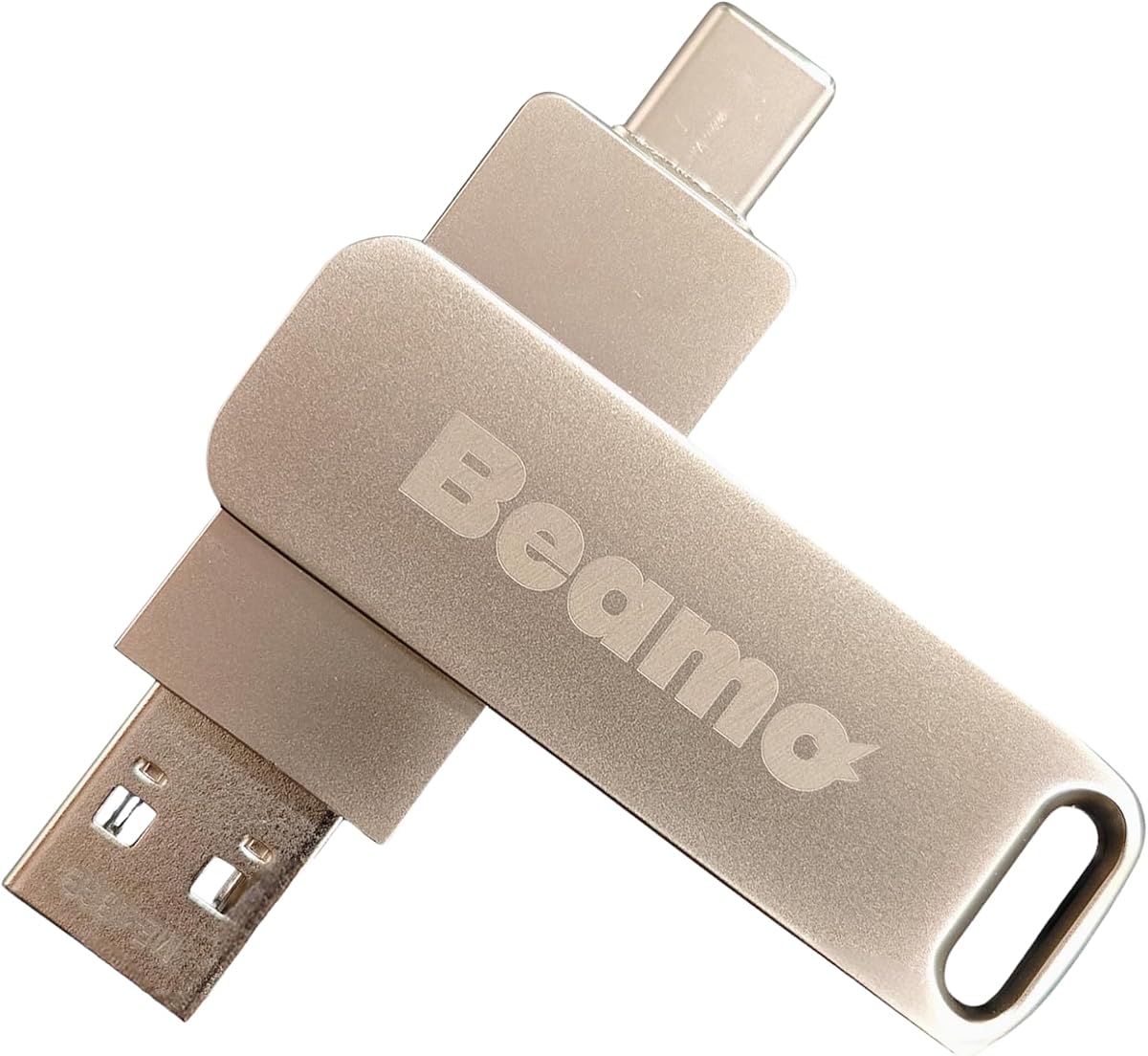


This drive offers an impressive collection of sixteen different operating systems in one compact package. It holds a solid user rating for providing a versatile toolkit for testing various environments without installation.
We may earn a commission when you buy through this link, at no additional cost to you.
The inclusion of both modern Linux distributions and Windows 11 makes it suitable for diverse needs. Users appreciate the detailed boot instructions and video guides that simplify the initial setup process significantly.
While the sheer number of options is great, some users may find specific versions overwhelming. Disabling Secure Boot is a common requirement for UEFI systems, which might confuse some beginners.
It is an excellent choice for anyone wanting to explore multiple OS options affordably. The 64GB capacity ensures enough space for future updates or additional tools if needed.
Users can test everything from Kali for security to Ubuntu for general use on one drive.
Included visual guides and hotkey lists make booting accessible for those new to Linux.
We may earn a commission when you buy through this link, at no additional cost to you.
This product targets beginners with a curated selection of nine Linux systems designed for ease of use. It receives high praise for helping Windows users transition smoothly to open-source environments.
We may earn a commission when you buy through this link, at no additional cost to you.
Pre-bundled software like office suites and web browsers ensure users can work immediately. The printed guide simplifies the boot process, reducing frustration for those unfamiliar with BIOS settings.
The 32GB limit may restrict users needing large file storage alongside the OS. Compatibility notes exclude Chromebooks and Macs, which limits its use on newer hardware types.
It is ideal for first-timers wanting a safe and supportive introduction to Linux. The focus on stability and common tools makes it a reliable starting point.
Only systems known for stability and ease of use are included to prevent confusion.
Office and multimedia apps come ready to run without additional downloads.
We may earn a commission when you buy through this link, at no additional cost to you.
Mint is renowned for its user-friendly interface, and this drive delivers the latest 22.3 version reliably. It scores highly for offering a seamless experience that mirrors modern desktop operating systems.
We may earn a commission when you buy through this link, at no additional cost to you.
Users can run LibreOffice and multimedia tools offline, making it perfect for travel or restricted networks. The drive allows testing compatibility without touching your existing hard drive partitions.
The limitation to a single OS means less flexibility for comparison, but more focus. Some users might prefer a multiboot option if they want to switch between different distributions easily.
This drive is recommended for those prioritizing a smooth, Windows-like experience on Linux. Its stability and ease of use make it a top choice for personal or professional testing.
Comprehensive office tools work immediately without needing network access or updates.
Designed to boot on most PCs without complex configuration steps for users.
We may earn a commission when you buy through this link, at no additional cost to you.
Debian is trusted for its rock-solid reliability, and this latest version brings that power to a USB drive. It earns a perfect rating for users seeking a secure and customizable environment.
We may earn a commission when you buy through this link, at no additional cost to you.
The system includes no tracking or unnecessary bloatware, ensuring a clean slate for installation. Professionals appreciate the frequent security patches and ability to tailor the system precisely.
New users might find the initial setup slightly more technical than other distributions. It also lacks some of the consumer-focused applications found in other pre-loaded drives.
This drive is perfect for developers and security-conscious users needing a reliable base. Its performance optimization works well on both old and new hardware efficiently.
Built with rigorous testing standards to ensure data safety and system integrity.
Thousands of packages available to tailor the system to specific professional needs.
We may earn a commission when you buy through this link, at no additional cost to you.
This drive provides a focused tool for Linux Mint users looking to install or repair their systems. It offers a straightforward interface that helps avoid complex configurations during boot.
We may earn a commission when you buy through this link, at no additional cost to you.
The ability to run live or install makes it versatile for testing before committing. Clear instructions on boot settings help users avoid common issues with different computer manufacturers.
The limited capacity might restrict storing large backups alongside the OS. Boot menu keys vary across brands, so users need to check their specific device manual first.
It is a practical solution for maintaining Linux Mint installations on compatible PCs. The focus on utility makes it a good secondary drive for system maintenance.
Provides essential tools for fixing installation issues or reinstalling the OS quickly.
Detailed advice on backing up data prevents accidental data loss during setup.
We may earn a commission when you buy through this link, at no additional cost to you.
This multiboot drive is unique for supporting both modern and older 32-bit hardware efficiently. It appeals to users wanting to revive aging computers with a lightweight Linux system.
We may earn a commission when you buy through this link, at no additional cost to you.
Having three versions allows comparison between new features and established stability. The user guide ensures that even non-technical users can navigate the boot process smoothly.
The lack of other distributions limits broader experimentation for users. Retail packaging is minimal, which might matter to those expecting a boxed product.
It is an excellent choice for extending the life of older PCs. The focus on compatibility makes it a reliable option for legacy hardware users.
Designed to work on older machines that modern 64-bit systems cannot support.
Allows users to test older stable versions against newer feature-rich options easily.
We may earn a commission when you buy through this link, at no additional cost to you.
This drive is a utility kit containing tools like Clonezilla for disk imaging and recovery. It offers a mix of niche Linux systems for users with specific technical needs.
We may earn a commission when you buy through this link, at no additional cost to you.
Users appreciate the inclusion of XP alongside modern distros for compatibility testing. The compact size makes it easy to carry for on-site repairs or IT tasks.
The limited storage may restrict running large applications from the drive. XP is legacy software and might not suit secure modern network environments.
It is ideal for IT professionals needing backup tools on the go. The combination of utilities and OSs makes it a practical choice for specialized repair.
Clonezilla allows for reliable backups and cloning of hard drives easily.
Bodhi and TrixiePup cater to users with unique lightweight computing needs.
We may earn a commission when you buy through this link, at no additional cost to you.
This drive stands out for including both USB-A and USB-C connectors for modern laptops. It delivers a clean Mint experience with premium hardware for longevity and speed.
We may earn a commission when you buy through this link, at no additional cost to you.
Users can easily swap or upgrade ISOs thanks to clear instructions. The responsive support team adds value, ensuring help is available if issues arise.
Customization requires basic technical knowledge that might challenge complete novices. It is also limited to one distribution for those seeking variety.
It is a robust choice for users needing a versatile and durable boot drive. The hardware quality ensures it withstands frequent use over time.
Dual connectors ensure compatibility with both legacy and newest laptop models.
Built with high-quality chips and supported by a responsive technical team.
We may earn a commission when you buy through this link, at no additional cost to you.
This multiboot drive offers three variations of Ubuntu to suit different performance needs. It is praised for including Lubuntu, which helps run efficiently on very old hardware.
We may earn a commission when you buy through this link, at no additional cost to you.
All versions are LTS releases, ensuring long-term security and stability. Users can compare the standard desktop with lighter alternatives before deciding on an install.
Storage capacity might limit storing personal files alongside the OS. The retail box is not included, which is a minor aesthetic detail.
It is a smart pick for Ubuntu fans wanting to test versions. The LTS focus ensures a reliable experience across all included options.
Includes a lightweight variant designed specifically for older and weaker computers.
Long Term Support versions guarantee security updates for extended periods.
We may earn a commission when you buy through this link, at no additional cost to you.
This drive covers both desktop and server needs, making it versatile for developers. It supports ARM architectures alongside standard Intel chips for broader hardware use.
We may earn a commission when you buy through this link, at no additional cost to you.
The included Server installer allows for hosting and network learning. Hardware quality ensures fast boot times and reliable data handling during critical tasks.
Server tools add complexity that beginners may find overwhelming without prior knowledge. The focus on Ubuntu might not appeal to those seeking a diverse distro mix.
It is ideal for IT professionals needing a multi-purpose boot solution. The dual USB design ensures connectivity across a wide range of devices.
Provides tools for setting up networking and hosting Linux servers.
Supports both traditional x64 chips and newer ARM-based systems.
We may earn a commission when you buy through this link, at no additional cost to you.
Selecting the right USB drive requires evaluating compatibility, software content, and hardware needs. This section details key factors to consider before purchasing a bootable tool.
Storage capacity determines how many operating systems you can fit and whether you can store data alongside the OS. Drives like 64GB options allow for multiple distros while 16GB models might limit choices to one or two systems.
Choose at least 32GB if you want flexibility and room for personal files.
The range of included Linux versions affects how well the drive meets your specific goals. Multiboot drives are great for experimentation, while single-distro options offer simplicity and polish.
Select a multiboot drive for testing or a focused drive for specific stability needs.
Modern computers typically use UEFI, but older machines still rely on Legacy BIOS. Ensure the drive explicitly supports both to avoid boot issues across different hardware generations.
Look for products stating UEFI and Legacy compatibility in their specifications.
USB 3.0 and 3.2 interfaces offer faster boot times compared to USB 2.0. Higher speeds make running live environments smoother and reduce waiting during system startup.
Prioritize USB 3.0 or higher for better performance on modern ports.
Most drives work with standard PCs but often exclude ARM devices or Macs. Check the product details to confirm it supports your specific CPU architecture and device type.
Verify compatibility with your device type before purchase to ensure it boots.
Clear instructions and responsive customer support can save time if you face boot errors. Printed guides or online resources help users navigate BIOS settings and boot menus.
Choose brands that provide clear guides and accessible support for troubleshooting.
Privacy-focused distros like Tails or Debian offer enhanced security by limiting tracking. Consider your needs for anonymity or data protection when selecting an OS.
Prioritize privacy-focused systems if security is your main goal.
Some drives allow you to install Linux onto the hard drive easily, while others are live-only. Check if the drive includes an installer for permanent setup if needed.
Look for installer options if you plan to use the OS daily.
To use the drive, insert it into a USB port on your computer and restart the system. You may need to press a specific key during boot to access the boot menu and select the USB device.
Once booted, you can test the operating system in Live mode without making changes to your internal hard drive. This allows you to check hardware compatibility and features safely.
Handle the drive carefully by avoiding extreme temperatures and physical shocks. Store it in a protective case when not in use to prevent damage to the USB connector.
No, these drives are designed to run in Live mode directly from the USB. You can test the system and browse the web without installing anything on your hard drive. Installation is optional if you decide to switch permanently.
Most standard drives do not support Macs or Chromebooks as they require specific boot configurations. Always check the product compatibility section to see if your device is supported before purchasing.
For many drives, you must disable Secure Boot in your BIOS settings to boot successfully. Some newer systems support signed bootloaders, but disabling Secure Boot is common for compatibility.
Some drives allow file persistence so you can save documents or settings across sessions. However, standard Live mode often erases changes after reboot unless specific settings are enabled.
Updating usually requires reflashing the USB with a newer ISO image using tools like Rufus. These pre-made drives are convenient but may not support self-updates easily without reformatting.
Yes, they provide secure environments for tasks like web browsing or office work. Just ensure you keep updates running if you plan to use them regularly for sensitive tasks.
The top picks cover a wide range of needs, from budget-friendly multiboot options to polished single-distro solutions. Whether you want variety or stability, there is a drive here to fit your workflow.
Prioritize hardware compatibility and boot speed when making your decision. A drive that matches your system architecture will save time and reduce frustration during setup.
Prices and stock vary frequently so verify the latest details on the product pages before ordering. Ensure the specific version matches your needs to get the most value from your purchase.