
Samsung QB43R 43 inch 4K UHD LED Commercial Signage Display
5.0Editor score
4K UHD resolution
Slim elegant design
Embedded media player
Selecting the right conference room monitor is essential for modern business communication. A high-quality display ensures clear visuals during video calls and presentations. The best models offer robust connectivity, wide viewing angles, and reliable performance for daily use.
We evaluated ten leading commercial displays based on resolution, size, built-in features, and compatibility with popular conferencing platforms. Our analysis covers options ranging from compact huddle room screens to large-format enterprise solutions designed for demanding environments.
Each pick highlights specific strengths such as anti-glare coatings, system-on-chip technology, and integrated audio. Prices and availability fluctuate regularly, so check current listings for the most accurate information before making your final purchasing decision today.
5.0Editor score

4.8Editor score

4.7Editor score
As an Amazon Associate we earn from qualifying purchases.
The following comparison table outlines the core specifications and key features of each selected conference room monitor to help you find the perfect match for your specific business needs.


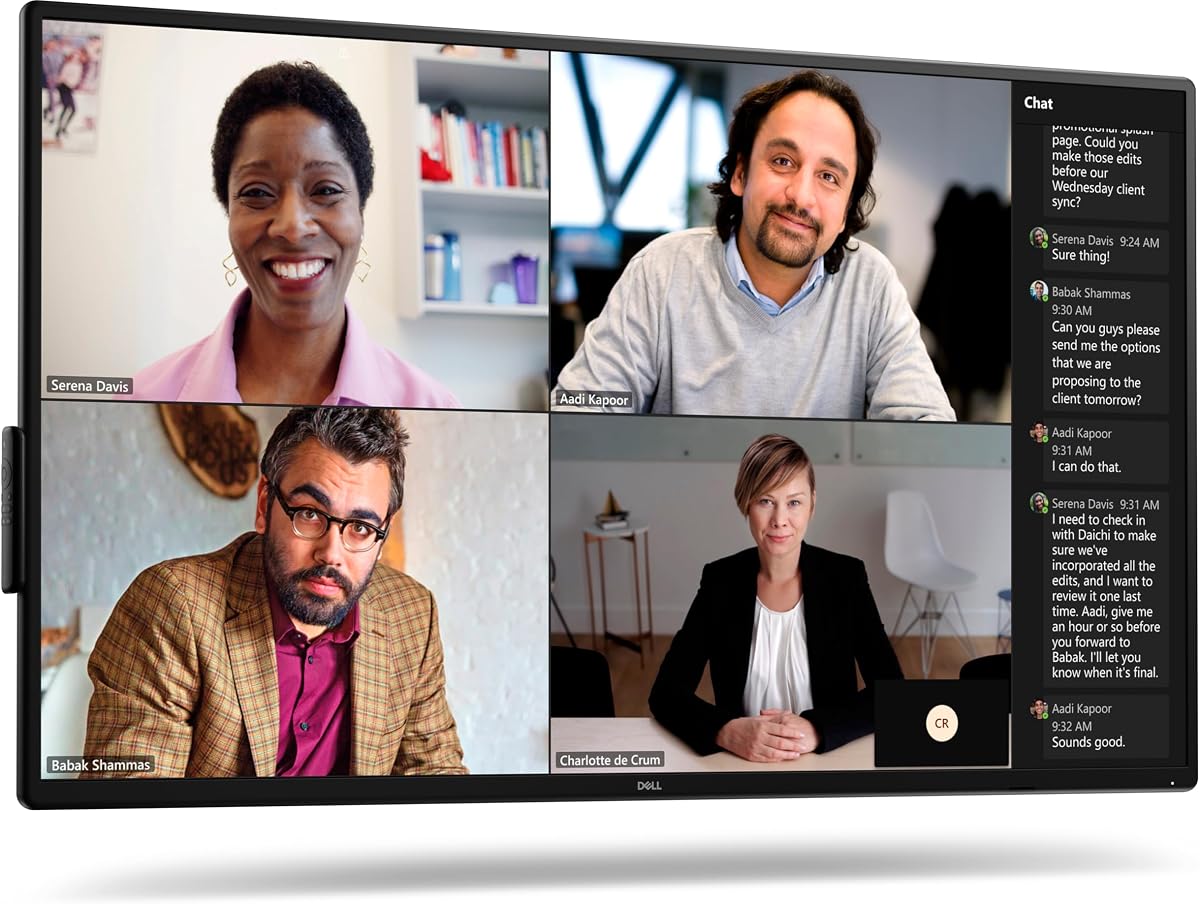


The Dell P5524Q stands out as a premier choice for medium to large conference rooms. Its 55-inch 4K display delivers sharp visuals that make detailed presentations and video calls feel lifelike. The anti-glare coating ensures that ambient light does not interfere with visibility during daytime meetings.
We may earn a commission when you buy through this link, at no additional cost to you.
Built-in 2x10W speakers provide adequate audio for standard calls without needing external peripherals. The monitor includes robust security options like a cable lock slot and security lock to prevent theft or tampering. Wide viewing angles mean every participant sees the same image quality from their seat.
While the price is higher than some budget options, the durability and professional features justify the investment. The physical size requires careful planning for smaller huddle rooms but fits well in standard boardrooms. Users should ensure their mounting hardware supports the weight and dimensions effectively.
Businesses seeking a reliable all-in-one visual solution will find this monitor meets high expectations. It balances screen real estate with functionality to support daily collaboration needs. We recommend it for organizations prioritizing image clarity and security in their meeting spaces.
The anti-glare panel reduces reflections significantly, allowing for clear viewing even near windows or under bright office lights.
Integrated locking mechanisms help secure the device against unauthorized removal, which is vital for public or semi-public meeting areas.
We may earn a commission when you buy through this link, at no additional cost to you.
The Samsung QB65R offers an expansive 65-inch viewing area ideal for executive boardrooms or large training halls. Its 4K UHD resolution combined with Dynamic Crystal Color ensures images remain vibrant and true to life. The integrated System-on-Chip technology allows it to function as an all-in-one digital signage solution without extra hardware.
We may earn a commission when you buy through this link, at no additional cost to you.
Compatibility with Cisco WebEx room kits makes it a strong candidate for businesses already invested in that conferencing ecosystem. Built-in Wi-Fi and Bluetooth enable seamless content sharing from mobile devices or tablets. Intelligent UHD upscaling maintains high quality even when displaying standard definition content on such a large screen.
Installation is simplified by its slim design and robust cable management features. However, the sheer size demands careful planning for room acoustics and seating arrangements. The high brightness level ensures visibility but may contribute to higher energy usage in a 24/7 environment if not managed properly.
This display is best suited for enterprises requiring a large focal point for collaboration and data visualization. It offers premium build quality and smart features that streamline complex meeting workflows. Organizations valuing brand reliability and large-format visuals should consider this model highly.
The embedded media player and SoC tech allow for autonomous content playback and scheduling, reducing the need for external media sources.
Integrated Wi-Fi and Bluetooth facilitate easy connection to mobile devices, letting presenters share slides without plugging in cables.
We may earn a commission when you buy through this link, at no additional cost to you.
The Samsung QB43R delivers excellent value for smaller conference rooms or huddle spaces needing high resolution. Its 43-inch 4K panel offers sharp text and vibrant colors thanks to Dynamic Crystal Color technology. The 350 nit brightness ensures clear visibility even in rooms with moderate lighting conditions.
We may earn a commission when you buy through this link, at no additional cost to you.
Users benefit from built-in Wi-Fi and Bluetooth for flexible control and content sharing. The System-on-Chip architecture eliminates the need for external media players, saving desk space. A 3-year warranty provides peace of mind for businesses concerned about longevity and support for their equipment investment.
While the screen is smaller than premium models, it remains sufficient for standard video conferencing tasks. The slim, elegant design allows for easy mounting and clean installation in modern office environments. However, audio may require external speakers for larger groups due to limited built-in output capabilities.
This model is an ideal starting point for businesses upgrading from older, lower-resolution displays. It offers professional-grade features at a competitive price point without compromising on core functionality. We recommend it for startups or departments needing reliable digital signage and conferencing support.
Priced lower than many competitors while retaining 4K resolution and smart connectivity features like Wi-Fi and Bluetooth support.
The included 3-year commercial warranty helps protect your investment against hardware failures and ensures longer operational lifespan.
We may earn a commission when you buy through this link, at no additional cost to you.
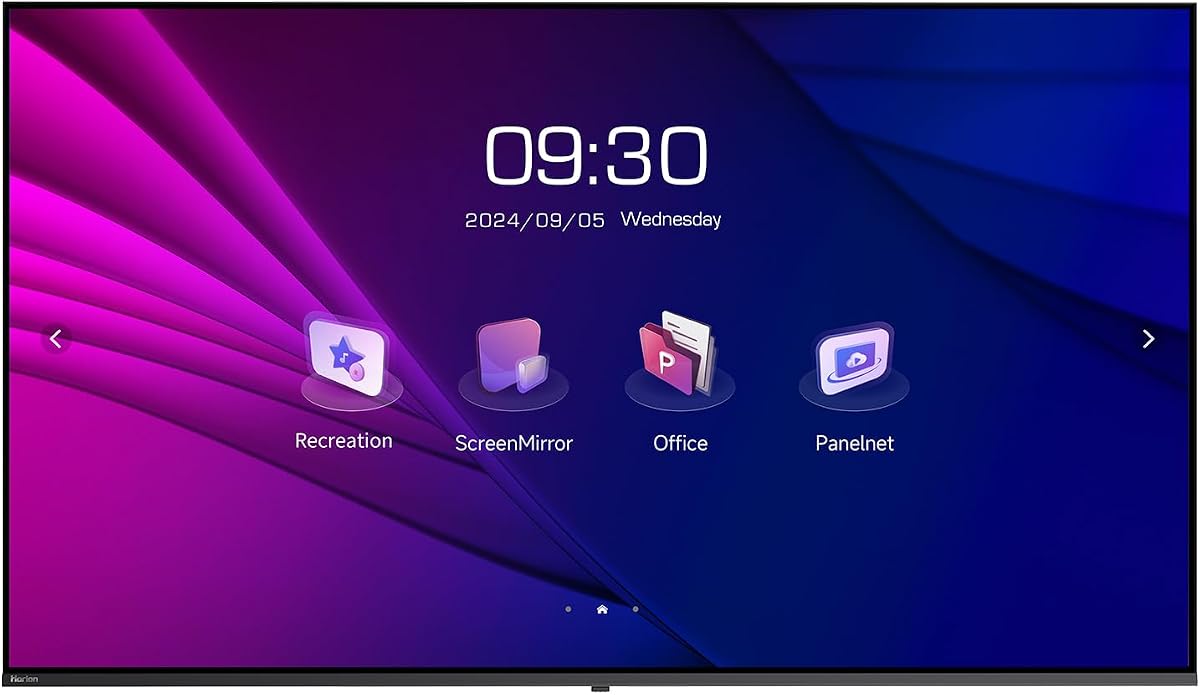
The HORION 75" display offers massive visual real estate at a competitive price point compared to similar large formats. Its 4K UHD resolution and high NTSC color gamut ensure vibrant visuals that stand out in bright retail or office environments. The dual WiFi Pro stability system uses independent modules to prevent lag during wireless casting sessions.
We may earn a commission when you buy through this link, at no additional cost to you.
This unit includes an ad-free Horion OS that simplifies switching between TV and meeting modes. Tools like agenda timers and voting support make it versatile for boardrooms or classrooms. TÜV Rheinland-certified low blue light technology helps reduce eye strain during long hours of continuous use and presentations.
The ability to mount vertically with a reinforced backplate adds flexibility for lobby directories or promotional shelves. While the brand may not be as ubiquitous as legacy tech giants, the feature set is compelling for modern setups. Care must be taken during installation to secure such a large and heavy unit properly.
Organizations looking for a large visual aid without breaking the budget will find this monitor highly attractive. It balances professional features like 24/7 operation with user-friendly tools for daily management. We suggest it for spaces where visibility and cost efficiency are top priorities.
Separate modules for casting and internet connection ensure a stable, lag-free experience even in Wi-Fi crowded office environments.
The low blue light certification reduces harmful emissions, helping protect vision during extended working hours or training sessions.
We may earn a commission when you buy through this link, at no additional cost to you.
The Dell P5525QC is engineered for professional environments requiring consistent color and reliable performance. Its 55-inch UHD panel uses IPS technology to maintain accurate colors and wide viewing angles. The 400cd/m2 brightness level ensures the image remains vivid even under standard office lighting conditions.
We may earn a commission when you buy through this link, at no additional cost to you.
Connectivity is a strong suit with DisplayPort, HDMI, and USB-C ports available for various device types. The USB-C port supports video and power delivery, simplifying the setup for modern laptops. Designed for commercial use, it withstands frequent daily operation without compromising quality or longevity over time.
While the price reflects its premium commercial status, the reliability justifies the cost for serious business use. The 60Hz refresh rate is standard for presentation work but not intended for high-speed gaming applications. Users may need to manage multiple cables effectively to keep the workspace tidy.
This monitor is best suited for IT departments managing high-performance workspaces. It offers the stability and features needed for critical business presentations and data visualization. We recommend it for organizations that prioritize Dell's support network and build quality standards.
The IPS panel ensures consistent color fidelity across wide angles, making it easy for everyone in the room to see details accurately.
Single cable connectivity for video and power streamlines the user experience for presenters bringing their own laptops to meetings.
We may earn a commission when you buy through this link, at no additional cost to you.
The Philips 34" UltraWide monitor is ideal for small huddle rooms where immersion and connectivity are key. The 21:9 aspect ratio provides extra horizontal screen space for multitasking or viewing wide spreadsheets during calls. A built-in webcam with Windows Hello support and noise-canceling mic simplifies video conferencing setup.
We may earn a commission when you buy through this link, at no additional cost to you.
USB-C docking transfers data and power to laptops with a single cable, reducing desk clutter. The 100Hz refresh rate ensures smooth motion for scrolling and video playback. Rich color technology delivers accurate images that help maintain focus during long discussion sessions or training modules.
While the user rating is lower than other options, it may reflect specific use case mismatches rather than core quality issues. The curved design helps alleviate eye strain by keeping all pixels equidistant from the viewer. It lacks the sheer resolution of 4K panels but offers a unique workflow advantage.
Teams needing a dedicated all-in-one device for quick meetings will appreciate the integrated peripherals. It saves space on the desk compared to separate camera and mic units. We recommend it for small offices prioritizing ease of setup and ergonomic comfort over raw resolution.
The built-in 5MP webcam and noise canceling mic remove the need for external video conference gear in small meeting rooms.
The 1500R radius curve aligns with natural human vision, reducing eye fatigue during extended periods of screen interaction.
We may earn a commission when you buy through this link, at no additional cost to you.
The Sony FW75BZ30L combines high resolution with HDR support for rich contrast and deep blacks. Its 75-inch VA LCD panel delivers high contrast ratios, making it suitable for environments where image fidelity matters. The monitor supports both landscape and portrait orientations, offering versatility for different display needs.
We may earn a commission when you buy through this link, at no additional cost to you.
Designed for commercial use, this unit ensures stable performance over long operational hours. The HDR support enhances content detail in shadows and highlights, which is beneficial for media-heavy presentations. While specific connectivity details are less detailed in the summary, it generally supports standard professional inputs.
The price point positions it as a premium option for those seeking Sony's image quality reputation. Installation may require professional assistance due to the weight and size of the unit. Users should verify their room lighting conditions to optimize the high contrast benefits of the VA panel.
This monitor is best for businesses focused on high-quality media playback or detailed visual analysis. It provides the screen real estate and color performance needed for impactful presentations. We recommend it for spaces where image quality is the top priority.
The VA panel technology ensures deep blacks and high contrast, which improves readability and visual impact compared to IPS options.
Support for both landscape and portrait modes allows the display to adapt to different content types or room layouts effectively.
We may earn a commission when you buy through this link, at no additional cost to you.
The Samsung QE50T is built for reliability, supporting 16 hours of operation per day, seven days a week. Its 50-inch 4K display fits well in medium-sized meeting areas or reception halls. The 300 nit brightness is adequate for indoor use without glare, while the IP5X dust-proof rating adds resilience.
We may earn a commission when you buy through this link, at no additional cost to you.
A built-in media player allows direct USB content playback without a PC. The slim, side bezel-less design creates an immersive viewing experience and clean aesthetic. This model supports landscape or portrait orientation, giving flexibility for various mounting scenarios in a business environment.
While the brightness is lower than some commercial signage units, it remains sufficient for standard conference rooms. The 3-year warranty helps businesses manage long-term costs and ensures peace of mind. Users needing a durable screen for daily schedules will find this robust.
We recommend this monitor for businesses requiring consistent uptime and durability. It offers a balance of size, resolution, and operational endurance at a reasonable cost. Ideal for departments managing frequent daily updates or continuous information display.
The 16/7 operation capability ensures the monitor can handle extended daily schedules without overheating or failing over time.
The USB media player allows users to show presentations without needing to connect a laptop, streamlining the process significantly.
We may earn a commission when you buy through this link, at no additional cost to you.
The Logitech MeetUp complements existing screens rather than replacing them, acting as a high-end conferencing system. Its 4K sensor captures sharp video for small and huddle rooms, ensuring remote participants see everyone clearly. The three beamforming microphones capture voices up to 4 meters away with high precision.
We may earn a commission when you buy through this link, at no additional cost to you.
This device supports multiple mounting options to fit wall, credenza, or display setups. It is compatible with major platforms like Zoom and Microsoft Teams via USB. Remote management tools help IT teams deploy and update devices across the office efficiently without onsite visits.
While not a monitor itself, it transforms any display into a professional video call station. Users must provide their own screen to complete the visual side of the setup. The motorized pan/tilt function allows for flexible coverage of the room during discussions.
Businesses upgrading a standard TV to a video conferencing room will find this system highly valuable. It delivers the audio and video quality needed for professional interaction without complex cabling. We recommend it for huddle rooms requiring reliable and easy-to-manage conferencing hardware.
Beamforming mics focus on active speakers while filtering background noise, ensuring that voices are heard clearly during calls.
The motorized pan and tilt capability allows the camera to track movement or focus on specific areas like whiteboards easily.
We may earn a commission when you buy through this link, at no additional cost to you.
The LG UL3G comes bundled with essential accessories like HDMI cables and surge protectors, simplifying the setup process. Its 43-inch 4K UHD resolution provides sharp details for text and graphics in meeting environments. The IPS panel ensures wide viewing angles so everyone in the room sees consistent quality.
We may earn a commission when you buy through this link, at no additional cost to you.
Built-in webOS 4.1 enables smooth content playback and customization without external players. It is certified for Crestron Connected and Cisco setups, making it easy to integrate into existing infrastructure. Remote monitoring via Control Manager helps IT teams troubleshoot issues without visiting the room.
The bundle includes a cleaning kit and cable ties, showing attention to practical installation needs. While the screen size is standard, the connectivity and OS features offer smart control capabilities. Users should ensure their network is configured properly to utilize remote management features effectively.
This option is excellent for businesses wanting a hassle-free purchase with necessary add-ons included. It provides a smart, connected display experience suitable for both meetings and digital signage. We recommend it for organizations needing certified compatibility and easy deployment.
The included cables and surge protector save time on procurement and ensure safe installation right out of the box.
Certified connectivity with Crestron and Cisco allows for seamless integration into complex enterprise control and conferencing systems.
We may earn a commission when you buy through this link, at no additional cost to you.
Selecting the right conference room monitor requires evaluating several key technical and functional factors. This guide outlines the most important aspects to consider before making a purchase for your business space.
The size of the monitor should match the physical dimensions of your meeting room. For small huddle rooms, a 32 to 43-inch display is often sufficient, while larger boardrooms typically require 55-inch to 75-inch panels to ensure visibility from all seats. Resolution is equally important; look for 4K UHD (3840×2160) panels to ensure text and detailed graphics remain crisp even when zoomed in. High resolution enhances the professional quality of video calls and presentations.
Prioritize 4K resolution and a screen size that fits your room layout comfortably without overwhelming the space. This ensures all participants can view content clearly regardless of where they sit.
Panel technology determines color accuracy and how well the image holds up at different angles. IPS panels offer superior color consistency and wide viewing angles, making them ideal for conference rooms where participants sit side-by-side or at sharp angles. VA panels provide higher contrast ratios and deeper blacks but may have narrower viewing angles. Ensure the monitor specifies a wide viewing angle range to avoid color shifting for off-center viewers.
Choose an IPS panel if your room requires consistent color and clarity from all viewing positions. This guarantees that everyone in the room sees the same high-quality image.
Brightness measured in nits affects visibility under various lighting conditions. Commercial monitors typically offer 300 to 350 nits, which is sufficient for standard indoor offices. If your room has large windows or bright lights, look for models with anti-glare coatings or higher brightness levels to prevent reflections from obscuring the content. Some displays also include ambient light sensors to adjust brightness automatically.
Opt for a brightness level of at least 300 nits paired with an anti-glare surface. This combination ensures the screen remains readable even in well-lit conference environments.
A robust selection of ports is essential for connecting laptops, cameras, and external speakers. Look for HDMI inputs for standard video connection, USB-C for modern laptop docking with power delivery, and DisplayPort for high-bandwidth data. Wireless connectivity like Wi-Fi and Bluetooth allows for easy content sharing from mobile devices. Some business monitors include built-in docking hubs to simplify cabling for attendees.
Ensure the monitor includes HDMI, USB-C, and ideally wireless capabilities. These options provide the flexibility needed to connect various devices used in modern meetings.
Many commercial monitors come with an embedded System-on-Chip (SoC) that allows them to run apps or display content without an external PC. Look for features like built-in media players, wireless casting support (Miracast or Airplay), and conferencing compatibility such as Cisco WebEx or Microsoft Teams Rooms. Some models also include built-in microphones and speakers, though external audio is often preferred for larger spaces.
Select a monitor with an embedded OS or casting capabilities if you want a standalone solution. This reduces clutter and simplifies setup for quick meetings.
Commercial monitors are built to run for longer hours than standard consumer displays. Look for models rated for 16/7 or 24/7 operation if the room sees heavy daily use. An IP5X dust-proof rating indicates better protection against particles. Additionally, check the warranty terms; commercial warranties often cover longer periods and include better support options for businesses compared to standard consumer plans.
Prioritize models with commercial durability ratings and extended warranties. These features ensure reliability and lower long-term maintenance costs for your business.
Consider how the monitor will be installed in your room. Most commercial displays support VESA mounts for wall or stand installation. Check the weight and dimensions to ensure your chosen mount can support the unit. Slim bezels improve the aesthetic and viewing experience. Some models also allow for vertical (portrait) orientation, which is useful for digital signage or code reviews.
Choose a monitor with standard VESA compatibility and a slim design. This ensures it fits your mounting solution and looks professional in any environment.
For enterprises using specific collaboration tools, check if the monitor is certified for platforms like Cisco WebEx, Microsoft Teams, or Google Meet. Certifications ensure that the display integrates seamlessly with conferencing hardware and software. Low Blue Light certification is another feature to consider for reducing eye strain during long work sessions. These certifications guarantee that the hardware meets industry standards for performance and health.
Look for conferencing certifications and eye comfort standards like Low Blue Light. These ensure the monitor works well with your existing software and protects user health.
To maximize the lifespan of your conference room monitor, ensure it is mounted securely using the recommended VESA brackets and wall anchors. Avoid placing it directly in the path of strong direct sunlight to prevent overheating and excessive glare. Proper placement ensures that all participants have a clear line of sight without needing to strain their necks during meetings.
Connect your devices using the appropriate ports to ensure optimal performance. For modern laptops, use USB-C if available to transfer video, data, and power through a single cable. If using HDMI, ensure you are using high-speed cables to support 4K resolution. Keep the monitor's settings calibrated to the room's lighting conditions to maintain accurate colors and visibility.
Clean the screen regularly using a microfiber cloth to remove dust and fingerprints. Do not use chemical sprays directly on the screen; instead, lightly dampen the cloth with water or a dedicated screen cleaner if necessary. Regular cleaning maintains the anti-glare coating and ensures the display looks professional. Also, inspect all cable connections periodically to ensure they remain secure and free of wear.
The ideal size depends on the room's dimensions and the number of participants. For small huddle rooms with fewer than six people, a 32 to 43-inch monitor is usually sufficient. Medium rooms typically benefit from 55-inch models, while large boardrooms often require 65 to 75 inches to ensure visibility from the back of the room.
Not necessarily. Many modern commercial monitors come with built-in operating systems and media players that allow content playback directly from USB drives. However, for video conferencing, you will need a computer or a conferencing system to connect to the monitor via HDMI or USB-C to handle the audio and video processing.
Commercial monitors are designed for longer operation hours and often feature better durability, such as IP ratings and longer warranties. They typically include more connectivity options, stronger anti-glare coatings, and brighter panels suitable for office lighting, whereas consumer monitors are built for shorter daily use and home entertainment environments.
Most wireless presentation systems connect via HDMI or Wi-Fi. Ensure your monitor has the necessary HDMI inputs or built-in Wi-Fi to receive wireless signals. If using HDMI, plug the wireless transmitter into the monitor and connect the source device to the transmitter. If using Wi-Fi, ensure the monitor and device are on the same network for screen sharing.
Yes, many commercial monitors support both landscape and portrait orientations. Check the product specifications to confirm if the specific model allows vertical mounting. If supported, you can rotate the display settings in the menu to display content correctly in portrait mode for signage or scrolling lists.
Commercial monitors are typically rated for up to 50,000 hours of operation. This can last several years depending on daily usage. Proper maintenance, such as keeping the unit clean and avoiding extreme temperatures, can help extend its operational life and ensure consistent performance over time.
Choosing the right conference room monitor involves balancing screen size, resolution, and specific business needs. Our top picks, including the Dell P5524Q and Samsung QB65R, offer a range of options from budget-friendly 4K displays to large premium formats suitable for enterprise environments.
Prioritize features like anti-glare coatings, wide viewing angles, and robust connectivity to ensure your meetings run smoothly. Whether you need a standalone digital signage solution or a conferencing-compatible display, the options listed provide reliable performance and professional quality for modern workspaces.
Always verify the current specifications and availability before purchasing to ensure the model fits your room setup perfectly. Prices may change over time, so checking the latest listings will help you secure the best deal for your business needs today.