
VENTION 6-in-2 USB C Hub
4.3Editor score
Detachable Magnetic Connector
Up to 80Gbps Speed
Up to 140W PD
This guide compares the top 10 docking stations for MacBook Neo, evaluating ports, display support, and charging power to help you choose the perfect hub for
Finding the right docking station for MacBook Neo can transform your workspace into a powerful productivity hub. With limited ports on modern laptops, a reliable hub ensures you can connect monitors, storage, and peripherals effortlessly.
We evaluated ten top-rated docking stations based on connectivity, performance, and compatibility with macOS systems. Our analysis covers everything from basic USB-C hubs to advanced Thunderbolt solutions to meet diverse professional needs.
Each pick highlights unique strengths and limitations to help you make an informed decision. Prices and availability may change, so verify current listings before purchasing to ensure you get the best deal for your setup.
4.3Editor score

4.5Editor score
4.1Editor score
The following table provides a side-by-side comparison of the top 10 docking stations for MacBook Neo. Review key specifications like port count, video output capabilities, and power delivery to find the best match for your device.





The Anker Laptop Docking Station Dual Monitor stands out as a top choice for MacBook Neo users seeking reliable expansion. With a solid 4.5 rating, it offers an 8-in-1 hub that transforms a single USB-C port into a versatile connection point for all your essential peripherals.
We may earn a commission when you buy through this link, at no additional cost to you.
Its standout feature is the dual HDMI support, allowing you to mirror or extend your display to two 4K screens. The 85W Power Delivery pass-through ensures your MacBook stays charged while you work, eliminating the need for a separate charger on your desk. The inclusion of Ethernet and card readers further cements its utility for professionals.
While it performs exceptionally well, there are minor trade-offs. Linux users may find compatibility restricted, and macOS on M1 chips limits external displays to mirrored mode. These constraints are typical for hubs at this price range and rarely impact general productivity workflows significantly.
This dock is ideal for hybrid workers who need a clean desk setup without breaking the bank. Whether you are editing videos or managing spreadsheets, the Anker hub provides the connectivity and power stability required for daily tasks. We recommend it as the best all-rounder for most users.
Connect two monitors simultaneously for enhanced multitasking capabilities.
Charge your laptop up to 85W while using all other ports.
We may earn a commission when you buy through this link, at no additional cost to you.
The iVANKY 12-in-2 FusionDock 1 is engineered for users who demand high performance from their docking station. Rated 4.3 stars, this device supports dual 4K@120Hz displays on compatible M4/M5 MacBooks, providing smooth visuals for creative work and multimedia consumption.
We may earn a commission when you buy through this link, at no additional cost to you.
Its charging capabilities are impressive, delivering up to 96W to your laptop and 18W to other USB-C devices. The 5Gbps data transfer speed ensures that moving large files is quick and efficient. Additionally, the included Gigabit Ethernet port provides a stable connection for video calls and downloads.
However, users with M1/M2/M3 base chips should note that dual display support is restricted to a single external screen. This limitation is inherent to the hardware rather than the dock itself. The higher price reflects the advanced video capabilities compared to standard hubs.
If you need high refresh rates and strong charging power, this dock is a compelling choice. It suits content creators and power users who prioritize display quality and data speed over budget considerations. The solid build quality and warranty support add to its value proposition.
Enjoy 4K@120Hz visuals on compatible M4/M5 MacBooks.
Simultaneously charge laptop and peripherals efficiently.
We may earn a commission when you buy through this link, at no additional cost to you.
The Anker Nano Laptop Docking Station offers a unique modular approach to connectivity. With a 4.2 rating, it features a 13-in-1 desktop base that includes a detachable 6-in-1 hub for portable use, covering both office and travel needs in one package.
We may earn a commission when you buy through this link, at no additional cost to you.
It supports triple display setups via HDMI and DisplayPort, making it excellent for traders or analysts needing multiple screens. The 100W Power Delivery keeps your laptop powered under heavy loads, and the 10Gbps data port speeds up file transfers significantly.
The main trade-off is macOS limitation to mirrored mode on multiple external displays. Additionally, the detachable mechanism adds complexity to the design. However, the convenience of having two docking solutions in one device outweighs these downsides for many users.
This dock is perfect for professionals who switch between desk and travel often. It maximizes desk utility while providing a compact solution for on-the-go work. If versatility is your top priority, this innovative hub delivers exceptional value.
Split the hub into desktop and travel versions easily.
Support up to three monitors for extended workspace.
We may earn a commission when you buy through this link, at no additional cost to you.
The Anker USB-C Hub for MacBook is designed with Mac users in mind. It rates 4.5 stars for its ultra-compact build that expands two USB-C ports into a multi-function hub. It supports high-speed data up to 40Gb/s and video resolutions up to 5K.
We may earn a commission when you buy through this link, at no additional cost to you.
Its HDMI port supports 4K@60Hz, while the multi-function port enables 5K@60Hz. Designed to avoid obstructing the MagSafe port, it fits seamlessly into Apple ecosystems. Users can enjoy crystal-clear streaming or mirroring across displays without cluttering their workspace.
It is important to note that this hub is not compatible with MacBook Neo. It is best suited for latest Air and Pro models. The high data speed is ideal for users transferring large files frequently. This is a specialized choice for specific MacBook owners.
If you own a recent MacBook Air or Pro, this hub is an excellent compact choice. It balances functionality with portability without sacrificing charging power. Verify your model compatibility before purchasing to ensure optimal performance.
Transfer files up to 40Gb/s with this high-performance hub.
Compact design leaves MagSafe port fully accessible.
We may earn a commission when you buy through this link, at no additional cost to you.
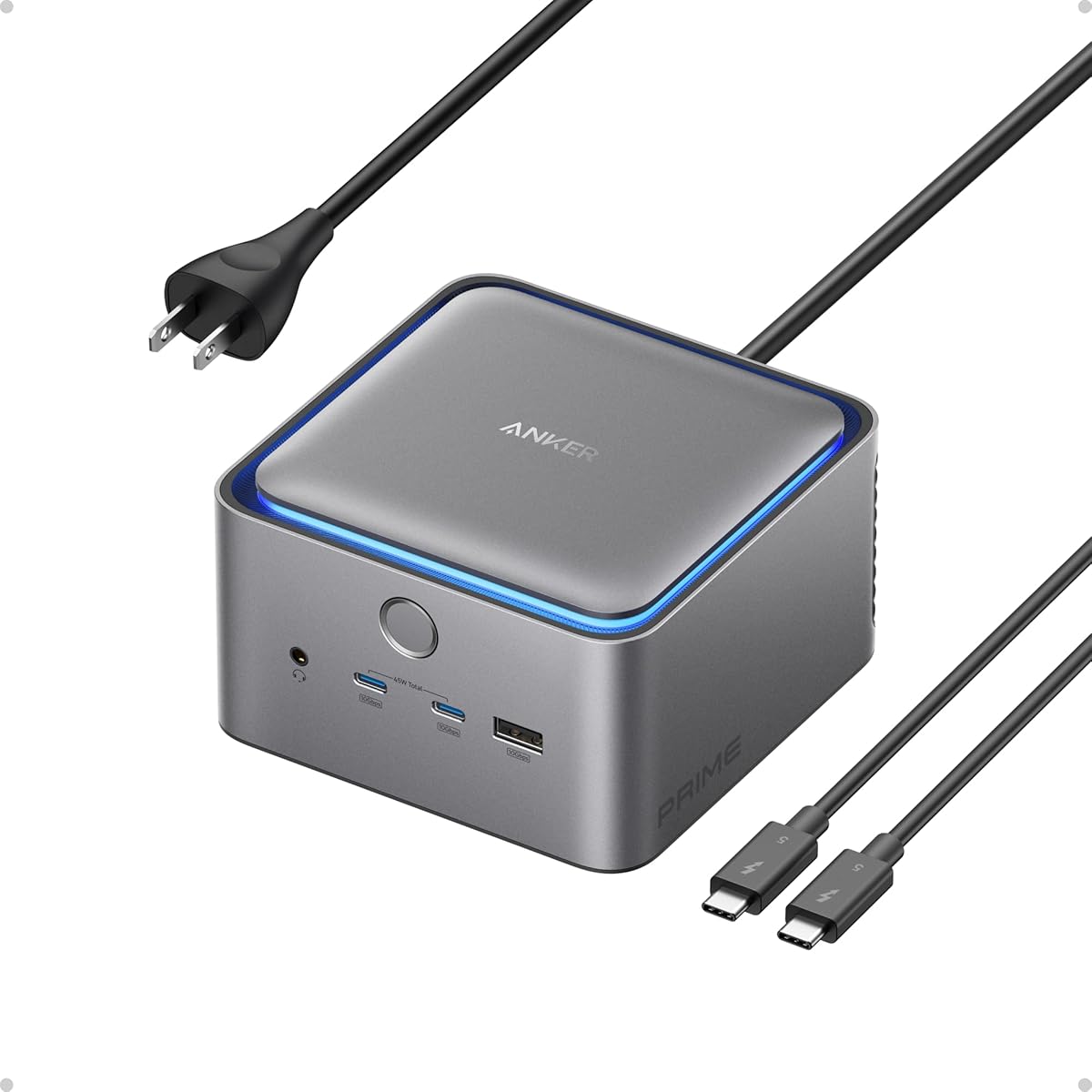
The Anker Prime Docking Station is a powerhouse designed for complex setups. It rates 4.3 stars and features 14-in-1 connectivity that allows charging up to four devices simultaneously. With 160W total output, it handles high-demand scenarios without power drops.
We may earn a commission when you buy through this link, at no additional cost to you.
It supports dual HDMI ports for clear streaming or mirroring across two displays. The data ports offer speeds up to 10Gbps, ensuring quick file transfers. This hub is built for professionals who need to manage many devices at once on a single dock.
The main drawbacks are the higher price point and Linux incompatibility. These limitations are acceptable for Mac and Windows users seeking top-tier performance. The ability to charge multiple devices at once makes it a central hub for all your peripherals.
Choose this dock if you need maximum power and connectivity. It eliminates the need for multiple chargers and simplifies your desk setup significantly. The extensive port selection ensures you are ready for any connection scenario.
Charge up to four devices simultaneously with 160W output.
Manage two external screens efficiently for multitasking.
We may earn a commission when you buy through this link, at no additional cost to you.
The VENTION 6-in-2 USB C Hub introduces a magnetic detachable connector for seamless attachment. With a 4.3 rating, it offers up to 80Gbps bandwidth, enabling 8K video output and high refresh rates. It is a cost-effective solution for high-resolution media consumption.
We may earn a commission when you buy through this link, at no additional cost to you.
The magnetic design means you do not need to plug and unplug frequently, reducing wear on your laptop ports. It supports up to 140W pass-through charging, ensuring your MacBook stays powered. The aluminum shell aids in heat dissipation during extended use.
However, the fit may be problematic if your MacBook has a bottom case. Additionally, having fewer ports than competitors means you might still need another adapter for specific needs. These minor compromises are balanced by the low price and unique design.
This hub is best for those who want high performance on a budget. If you value innovative design and high refresh rates over port count, it is a strong contender. Verify your case compatibility to avoid connection issues.
Detachable magnetic connector allows easy and frequent attachment.
Support 8K@60Hz and up to 240Hz for smooth visuals.
We may earn a commission when you buy through this link, at no additional cost to you.
The Anker Prime TB5 Docking Station represents the pinnacle of connectivity speed. It features Thunderbolt 5 upstream, enabling transfers of massive files like 150GB in just 25 seconds. It rates 4.1 stars for its advanced performance and robust build.
We may earn a commission when you buy through this link, at no additional cost to you.
It supports dual 8K@60Hz displays for high-end workstations. The active cooling system ensures it performs optimally under full load without overheating. This dock is engineered for professionals who need maximum bandwidth and resolution capabilities.
The main trade-off is the high price point and limited availability for older devices. It is a significant investment, but for those who need Thunderbolt 5 speeds, it is unmatched. The comprehensive suite of ports ensures future-proof connectivity.
If you require the fastest data speeds and highest resolutions, this is the dock to choose. It is ideal for video editors and developers working with large datasets. Ensure your laptop supports Thunderbolt 5 before purchasing.
Achieve lightning fast data transfers with TB5 technology.
Internal cooling system prevents overheating under load.
We may earn a commission when you buy through this link, at no additional cost to you.
The TobenONE MacBook Pro/Air Docking Station combines a stand with a docking station for a clean desk setup. It rates 4.5 stars and supports dual 4K@60Hz displays, delivering crisp visuals for editing and design. The stand saves significant desk space.
We may earn a commission when you buy through this link, at no additional cost to you.
It delivers up to 87W charging, enough to keep most MacBooks powered during daily use. The included stand organizes cables and improves airflow, which helps maintain performance during long sessions. It is designed specifically for Mac Pro and Air models.
Compatibility is restricted to specific MacBook models, excluding Neo. It also lacks some data ports compared to pure hubs. However, the integrated stand functionality is a major plus for ergonomics and aesthetics. This device offers a complete workspace upgrade.
If you want a tidy desk with a vertical stand, this is a great choice. It simplifies your setup by replacing multiple accessories with one unit. Verify model compatibility to ensure it fits your laptop perfectly.
Combines dock with vertical stand to save desk space.
Enjoy fluid 4K@60Hz visuals for professional work.
We may earn a commission when you buy through this link, at no additional cost to you.
The TobenONE 18-in-2 Docking Station offers an immense range of connectivity. Rated 4.5 stars, it features 18 ports including HDMI, USB-C, and Ethernet. It is designed for power users who need to connect numerous devices simultaneously without clutter.
We may earn a commission when you buy through this link, at no additional cost to you.
It supports dual 4K@60Hz displays, perfect for splitting work across screens. The included 150W adapter delivers up to 100W to your MacBook, ensuring reliable charging even under heavy load. The 2.5G Ethernet port provides stable fast internet.
This dock is not compatible with MacBook Neo, limiting its user base. The sheer number of ports can make cable management challenging. However, for those needing maximum connections, it is an unrivaled option. It consolidates many adapters into one hub.
Choose this dock if you need extensive connectivity. It is ideal for office professionals and remote workers with many peripherals. Verify compatibility with your MacBook model to ensure proper function.
Connect up to 18 devices simultaneously with ease.
2.5G Ethernet ensures stable fast internet for calls.
We may earn a commission when you buy through this link, at no additional cost to you.
The Plugable Thunderbolt 4 Dock is designed for reliability and performance. With a 4.1 rating, it features 13 streamlined ports including Thunderbolt 4 and dual 4K HDMI. It provides 100W charging to keep your MacBook powered throughout the day.
We may earn a commission when you buy through this link, at no additional cost to you.
It supports dual external displays on M4/M5 systems. The driverless compatibility makes setup simple and hassle-free for most users. Plugable offers lifetime support from their North American team, ensuring long-term assistance and peace of mind.
The main trade-offs are the higher cost and limited dual support on base chips. These factors make it better suited for professionals requiring guaranteed performance. The aluminum build ensures durability and heat dissipation over time.
If you value support and reliability, this is a top choice. It is perfect for IT departments and home offices that need consistent performance. Check your Mac model to confirm display capabilities.
Lifetime access to expert support from the manufacturer.
Experience fast data and video with TB4 technology.
We may earn a commission when you buy through this link, at no additional cost to you.
Selecting the right docking station for MacBook Neo requires understanding your specific connectivity needs. This guide covers essential factors like port selection, video support, and power delivery to help you find the perfect match.
Consider how many devices you need to connect simultaneously. Look for hubs that offer the specific ports you need, such as HDMI, USB-A, Ethernet, or card readers. A higher port count allows you to connect all peripherals without constantly swapping cables.
Prioritize docks with enough USB-A and USB-C ports to support your workflow. Ensure you have specialized ports for your specific peripherals to maintain a streamlined setup.
Check the maximum resolution and refresh rate supported by the dock. For high-quality visuals, ensure support for 4K at 60Hz or higher. Multiple HDMI ports allow you to connect dual monitors for expanded workspace.
Verify that the dock supports the display configuration you need, whether single or dual. Ensure compatibility with your MacBook model to avoid limitations on external screens.
Ensure the docking station supports Power Delivery (PD) to charge your laptop through the same port. Look for wattage ratings that meet your MacBook's charging requirements to ensure stable power without needing a separate charger.
Higher wattage support allows for efficient charging even during heavy use. Verify pass-through capabilities to keep your device powered up throughout the day.
Consider the speed of data transfer ports, especially if you work with large files. USB-C ports supporting 10Gbps or Thunderbolt speeds are ideal for quick file movements. Ethernet ports provide stable wired internet connections for remote work.
Faster data speeds reduce wait times during file transfers. Prioritize ports that match your specific data needs for optimal productivity.
Look for docks made from durable materials like aluminum alloy for better heat dissipation. A compact design helps save desk space while maintaining functionality. Consider whether you need a portable or desktop-oriented model based on usage.
High-quality build ensures longevity and reliable performance. A well-designed dock enhances your workspace aesthetics and usability.
Verify that the docking station is compatible with your specific MacBook model. Some docks have limitations with certain chip versions, so check detailed specs. Ensure support for your operating system to avoid driver issues.
Proper compatibility ensures seamless plug-and-play functionality. Reviewing product details prevents unexpected restrictions on features.
Set a budget that aligns with your requirements. While premium docks offer advanced features, standard hubs may suffice for basic needs. Compare features across price points to find the best value for your money.
Investing in a reliable dock can save money on peripheral adapters later. Balance cost with long-term utility to maximize value.
Check the warranty period and customer support options provided by the manufacturer. A solid warranty protects your investment against defects. Responsive support ensures quick resolution of any issues you may encounter.
Look for brands with a strong reputation for service. Good support adds peace of mind to your purchase.
To begin using your docking station, connect it directly to your MacBook using a high-quality USB-C cable. Ensure the connection is secure and that the power adapter is plugged into a wall outlet to supply sufficient energy.
Before connecting peripherals, power on your laptop and allow the system to recognize the dock. Connect devices one by one starting with monitors or network cables. Adjust display settings in System Preferences if needed to optimize your screens.
To maintain your dock, keep it in a cool and dry environment away from direct sunlight. Regularly inspect cables for wear and avoid bending them too sharply. Dust ports occasionally to prevent connection issues and ensure smooth operation.
A docking station transforms limited laptop ports into a full workspace hub. It allows you to connect multiple monitors, peripherals, and network cables simultaneously. This setup keeps your desk organized and boosts productivity significantly.
Yes, most modern docking stations support Power Delivery to charge your laptop. Look for docks with enough wattage to match your MacBook's requirements. This ensures your laptop stays powered even during demanding tasks.
Not all docking stations support dual external displays. It depends on your laptop model and the dock's capabilities. Some Macs with base chips may be limited to a single external screen.
You should look for HDMI or DisplayPort for video output and USB-A or USB-C for peripherals. Ethernet ports are useful for stable internet connections. SD card slots are helpful for content creators who need fast storage access.
Thunderbolt docks offer faster data transfer and higher video resolutions. They are worth the cost if you need high performance and future-proofing. For basic tasks, standard USB-C hubs may be sufficient.
Use a soft, dry cloth to wipe the exterior of the dock. Avoid using liquids directly on the device to prevent damage. Inspect ports for dust and use compressed air to clean them gently.
This could be due to a loose connection or a faulty cable. Try unplugging and reconnecting the dock to your laptop. Ensure you are using a cable that supports both data and charging.
Yes, it is generally safe to leave your MacBook plugged into a dock all day. Modern docks have safety features to prevent overcharging. However, removing the dock occasionally can help maintain battery health.
Selecting the best docking station for MacBook Neo depends on your specific workflow needs. Our top picks cover a range of budgets and capabilities to suit different users. Consider the balance of ports, power, and design when making your final decision.
Prioritize compatibility with your MacBook model to ensure full functionality. Ensure the dock supports the display and charging needs you require daily. Investing in a high-quality hub can significantly improve your workspace efficiency.
Remember that product availability and pricing may change frequently. Always check current listings for the most accurate information before purchasing. We hope this guide helps you find the perfect docking solution for your MacBook.