
PCIe 4.0 x4 64Gbps Compatible eGPU DOCK
4.4Editor score
OCuLink SFF-8612 Interface
Detachable Design for Portability
Compatible with Standard ATX Power
This guide compares the top ten Egpu Docks available in October 2026, evaluating performance, compatibility, and features to help you choose the right external
Egpu Docks allow laptop users to connect powerful desktop graphics cards for enhanced gaming and creative workflows. Choosing the right dock involves considering bandwidth, power supply compatibility, and ease of setup. The market offers various options ranging from compact OCuLink enclosures to versatile Thunderbolt stations.
We compared ten leading Egpu Docks based on real-world performance data, user feedback, and technical specifications. Our analysis focused on connection speeds, thermal management, and the ability to support modern high-end GPUs. This list covers products from top brands known for reliability and innovation in external graphics solutions.
Each pick highlights key strengths and potential trade-offs to help you make an informed decision. Prices and availability can change frequently so verify current details before purchasing. We aim to provide clear insights into how each dock performs with different host devices and workloads.
4.4Editor score

4.4Editor score
4.8Editor score
The following table provides a side-by-side overview of the ten selected Egpu Docks. Compare their interface types, power requirements, and key features to find the best match for your laptop or mini PC setup.




This Minisforum DEG2 dock stands out with its dual link support for USB4 V2 and OCuLink. It offers transfer speeds up to 80Gbps ensuring smooth performance for demanding tasks. The integrated M.2 NVMe slot allows direct storage of project files on the dock.
We may earn a commission when you buy through this link, at no additional cost to you.
Its universal power compatibility supports both ATX and SFX supplies making upgrades easy. The hardware switch allows instant mode changes without cable swaps. Signal stability is enhanced through a built-in re-drive booster minimizing latency during high bandwidth tasks.
The only trade-offs are the need to source your own GPU and power supply. Some users may find the initial configuration complex. However the seamless workflow and performance make these minor inconveniences acceptable.
Ideal for professionals needing reliable high-speed external graphics. It balances performance flexibility and modern connectivity standards. We recommend this dock for users wanting a future-proof desktop experience.
Switching between USB4 and OCuLink modes is simple with a physical toggle. This ensures compatibility across different host devices without needing adapters.
The M.2 slot keeps AI models and assets on the dock for faster access. This reduces file transfer times and streamlines your workflow.
We may earn a commission when you buy through this link, at no additional cost to you.
This DEG2 docking station works with OCuLink and TBT5 for versatile external graphics setups. It includes an internal M.2 slot for storing models and assets directly on the dock. Heavy GPU tasks run on the desktop card while the ultrabook handles display.
We may earn a commission when you buy through this link, at no additional cost to you.
Signal optimization ensures seamless interoperability across diverse cables and host devices. The flexible GPU and PSU support allows easy upgrades for individual components. Auto-on features sync power with your host for a smooth desktop-like experience.
Note that the GPU ATX and SFX power supplies are not included. It does not work with MINISFORUM MS-02 Wokstation which is a specific limitation. However for most users the connectivity and performance are excellent.
This unit is perfect for those needing a customizable and future-proof setup. It removes manual startups and delivers plug-and-play readiness. We suggest checking host compatibility before purchasing.
The auto-on function syncs power with the host device automatically. This removes the need for manual startups saving time during workflow.
Designed to ensure seamless interoperability across diverse cables and host devices. This reduces signal loss dropouts and connection faults.
We may earn a commission when you buy through this link, at no additional cost to you.
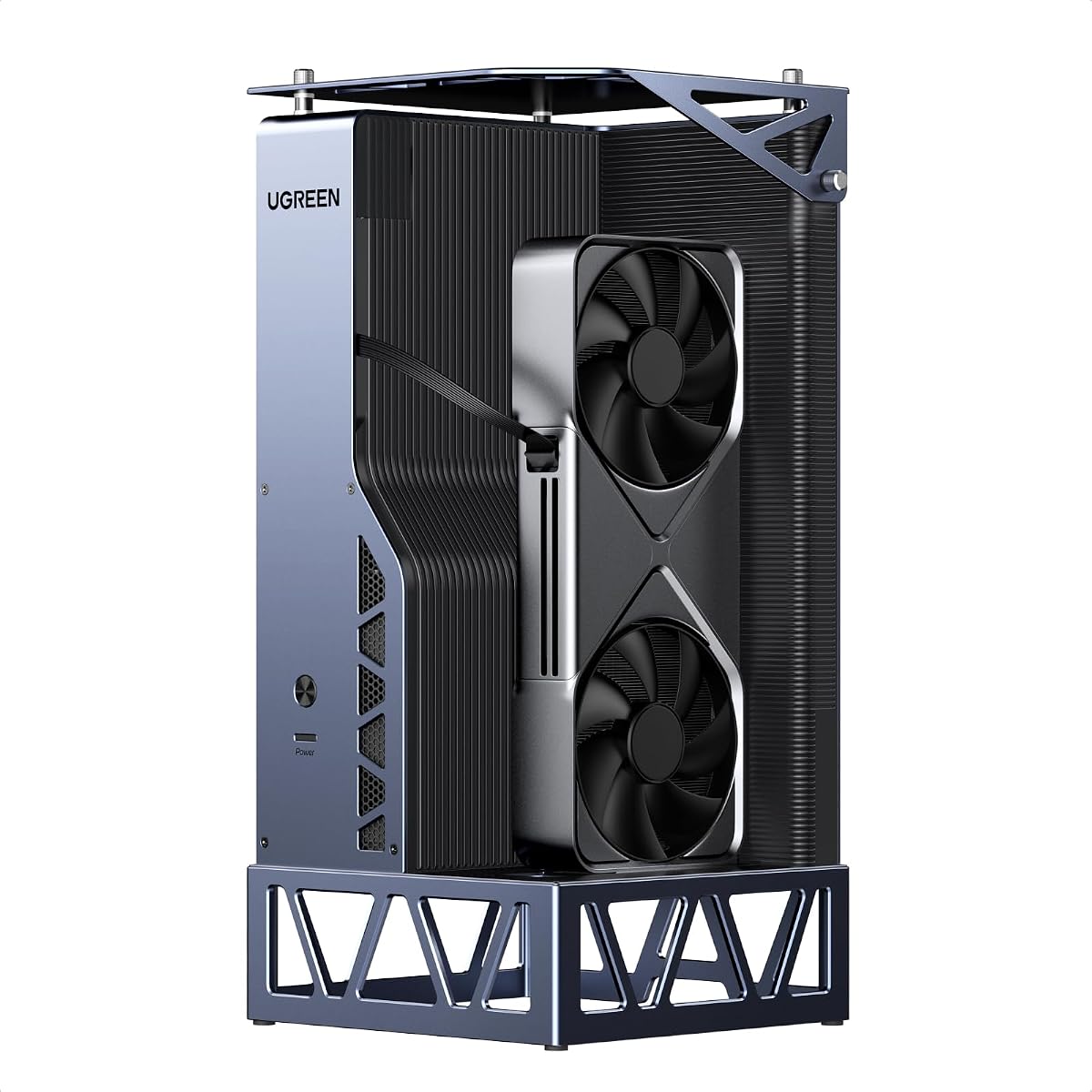
The UGREEN LinkStation transforms your laptop into a desktop powerhouse with dual channel performance. You can choose OCuLink for near-zero latency or USB4 for universal compatibility. The removable top cover extends compatibility allowing oversized GPUs up to 370mm.
We may earn a commission when you buy through this link, at no additional cost to you.
Its semi-open all-aluminum chassis delivers efficient cooling and true library-quiet operation. This is far quieter than competitors using noisy server-style PSUs. The integrated cable storage compartment keeps your setup clean and organized.
The premium price may be a barrier for budget-conscious buyers. However the build quality and quiet performance justify the cost. It avoids crashes and throttling during intensive AI or gaming tasks.
Ideal for gamers and creators needing stable desktop-grade power. It works across Windows Linux and Intel-based macOS. We recommend this for users prioritizing quiet and flexible design.
The removable top cover allows installation of oversized GPUs up to 370mm in length. This removes restriction headaches with modern high-end graphics cards.
Large low-RPM ATX 3.1 PSU fan delivers efficient cooling. This ensures library-quiet operation even under heavy load.
We may earn a commission when you buy through this link, at no additional cost to you.
This DEG2 station supports Oculink and TBT5 for versatile external graphics setups. It stores models and project files on its internal M.2 slot for faster access. The flexible GPU and power supply compatibility supports full-size cards and ATX or SFX power.
We may earn a commission when you buy through this link, at no additional cost to you.
Signal optimized design ensures seamless interoperability across diverse cables and host devices. Auto power-on eliminates manual startups by syncing power with the host device. Single-cable docking transforms workspace into a plug-and-play ecosystem.
The lower rating may indicate some user dissatisfaction with compatibility. It does not work with MINISFORUM MS-02 Wokstation specifically. However the feature set remains competitive for general use.
This is a good option for those needing a customizable configuration. It allows effortless upgrades for individual components. We suggest verifying your specific host compatibility first.
Heavy GPU tasks run on the desktop card while the ultrabook handles control. This ensures mobility without sacrificing performance power.
Engineered to ensure seamless interoperability across diverse cables and GPUs. This minimizes signal degradation drops and connectivity errors.
We may earn a commission when you buy through this link, at no additional cost to you.
Razer Core X V2 offers next-gen Thunderbolt 5 performance with ultra-fast bandwidth up to 80 Gbps. It fits PCIe desktop graphics cards up to 4 slots wide for massive power boosts. The modular chassis allows tool-free install of latest GPUs and ATX PSUs.
We may earn a commission when you buy through this link, at no additional cost to you.
A vented steel chassis with active cooling sustains maximum performance with a built-in 120 mm fan. It integrates with Thunderbolt 4 and 5 laptops and USB 4 gaming handhelds. Setup is simple with an included Thunderbolt 5 cable for immediate graphical boost.
Mac devices with M1 or later chipsets do not support eGPUs on this unit. The price is premium compared to some alternatives. However the brand reliability and tool-free modularity are strong positives.
Ideal for Windows users needing a trusted brand and future-proof setup. It manages demanding creative apps and AAA games well. We recommend this for those valuing ease of upgrades.
Swap out to the latest GPU and ATX PSU using included thumbscrews. This allows easy upgrades or upcycling of older cards.
Sustain maximum performance with a built-in 120 mm fan. It automatically ramps up during heavy loads or allows curve customization.
We may earn a commission when you buy through this link, at no additional cost to you.
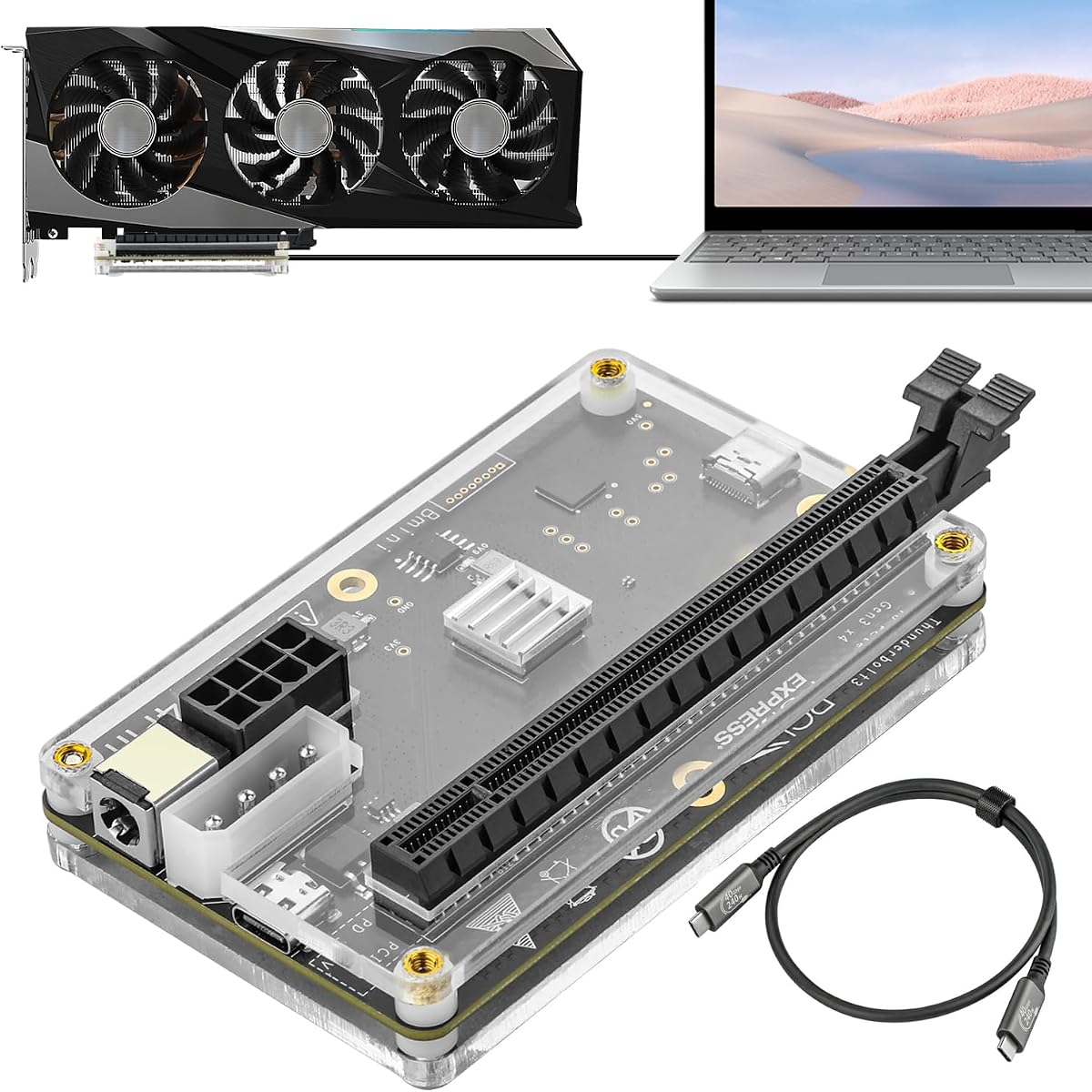
This eGPU dock is compatible with NUCs laptops and gaming machines featuring USB4 TB3 or TB4 interfaces. It supports the latest RTX 50 Series and RX 7000 Series GPUs. The built-in 40Gbps and 85W PD Charging TB4 port allows attaching external devices.
We may earn a commission when you buy through this link, at no additional cost to you.
Function well with a 40Gbps and 85W PD Charging TB4 port making it also a hub. Package does not contain the ATX power and does not contain the graphics card. Please ensure your laptop has a Thunderbolt 4 or 3 or USB 4 Port.
The warning about CPU CABLE insertion to avoid automatic power-off protection is critical. Incorrect wiring may require unplugging cables to reset. This requires attention during setup to ensure safe operation.
Suitable for users needing flexible connectivity options. It offers excellent performance for gaming AI training and rendering. We recommend careful setup to avoid power issues.
Built with a 40Gbps and 85W PD Charging TB4 port making it also a hub. You can attach external devices as needed for expansion.
With officially certified JHL7440 controller module showing high-performance. It supports local deployment of Deepseek-R1 effectively.
We may earn a commission when you buy through this link, at no additional cost to you.
MINISFORUM DEG1 is compact and easy to carry with dimensions around 14cm long. It features Oculink 4i interface with PCIe4.0x4 uplink supporting transfer rates up to 64Gbps. Compatible with ATX and SFX standard power supplies for flexible solutions.
We may earn a commission when you buy through this link, at no additional cost to you.
The Force Power On feature allows one-click switching between startup modes ensuring stable operation. OCulink interface locking mechanism prevents forced plugging damage. However note the interface does not support hot plugging and computer must be off to unplug.
While the compact size is great for travel the lack of hot plugging is a trade-off. The computer needs to be turned off to unplug the cable safely. This is acceptable for stationary setups but less ideal for rapid switching.
Best for users needing portable upgrades anywhere. It meets high-performance gaming and professional graphics processing needs. We recommend it for those prioritizing size and stability.
MINISFORUM DEG1 oculink egpu dock is compact and easy to carry. It fits easily into a backpack or handbag for upgrades.
OCulink connector has a fixed locking interface preventing forced plugging damage. Needs unlocking and unplugging by pressing the switch.
We may earn a commission when you buy through this link, at no additional cost to you.
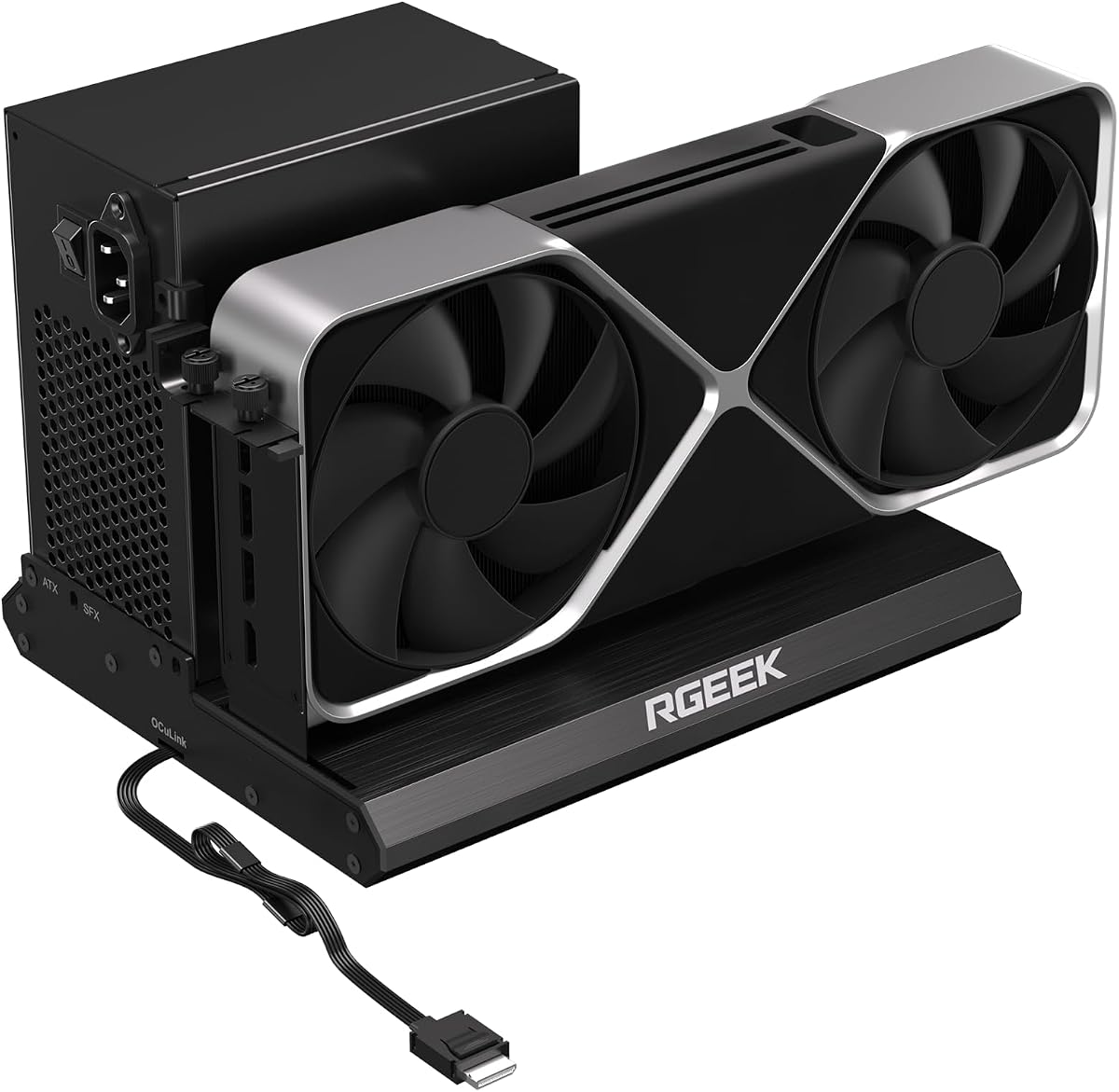
This OCuLink SFF-8612 enclosure dock supports data transfer rates up to 64Gbps. The detachable design improves portability and easy storage. PCB board with 10μ gold-plated contacts ensure superior conductivity and reduce oxidation.
We may earn a commission when you buy through this link, at no additional cost to you.
Compatible with graphics cards of various sizes like RTX 4090 and RX 7900 XTX. Dual screw mounting for PSU ensures stability with standard ATX power supplies. The OCuLink interface does not support hot plugging and computer needs to be turned off.
The affordable price makes it accessible for budget-conscious buyers. However the need to turn off computer for disconnect is a trade-off. This limits use to stationary workflows rather than rapid switching.
Ideal for users upgrading laptop or mini PC performance on a budget. It meets high-performance gaming and professional graphics needs. We recommend checking port compatibility before purchasing.
Our enclosure detachable design on both ends improves portability. Easy storage and transport without complex setups.
PCB board with 10μ gold-plated contacts ensure superior conductivity. Reduces oxidation rust related resistance causing system crashes.
We may earn a commission when you buy through this link, at no additional cost to you.
This Oculink eGPU Dock supports PCIe 5.0 x4 with up to 128Gbps bandwidth. It is backward compatible with 4.0 and 3.0 systems. Full aluminum material provides great heat dissipation and sturdy durability for long-term use.
We may earn a commission when you buy through this link, at no additional cost to you.
Broad GPU compatibility supports mainstream NVIDIA and AMD graphics cards like RTX 4090 and RX 7900. It supports ATX SFX and SFX-L power supplies with uniform I/O port layout. Simply download the driver after assembly to get started quickly.
The high bandwidth is great for future-proofing but requires specific host ports. Most existing OCuLink ports only support PCIe 4.0 with 64Gbps. You need an M.2 slot or PCIe 5.0 to OCuLink adapter for full speed.
Best for users needing maximum bandwidth and durability. It fits both gaming and professional GPUs perfectly. We recommend verifying your host port capabilities first.
Full aluminum material for great heat dissipation and sturdy durability. Ensures sustained performance during intensive tasks.
Easy to use and wide compatibility with no size restrictions for graphics cards. Installation is hassle-free with uniform I/O layout.
We may earn a commission when you buy through this link, at no additional cost to you.
This device uses the JHL6340 controller delivering speeds around 22Gbps compatible with Win10 and Win11. Flexible 4 power input options include CPU Molex PD 3.0 or DC5521. Compatible graphics cards range from RTX 5090 down to GTX 450 on NVIDIA.
We may earn a commission when you buy through this link, at no additional cost to you.
Most Windows 10/11/Linux-based laptops desktops or consoles with a Thunderbolt port can be used. Includes Thunderbolt 4 cable and 24Pin Power Jumper Cable for setup. Intel GPUs are not recommended according to the product documentation.
The lower bandwidth is a trade-off but offers better stability for graphics work and editing. It supports consoles with BIOS updates for USB4 functionality. The flexibility in power input is a strong plus.
Ideal for general graphics work and video editing. It provides solid value with flexible power options. We recommend checking your GPU driver availability.
Flexible 4 power input options allow you to choose what suits your setup. Includes CPU Molex PD 3.0 or DC5521 connections.
Compatible with Windows 10/11/Linux-based laptops desktops or consoles. Includes Lenovo Legion Go and devices with USB4 functionality.
We may earn a commission when you buy through this link, at no additional cost to you.
Selecting the right Egpu Docks requires understanding bandwidth interfaces and power needs. We outline key factors to help you match a dock with your laptop and workflow.
The interface determines maximum data transfer speeds. OCuLink offers 64Gbps with PCIe 4.0 while Thunderbolt 5 reaches 80Gbps. USB4 typically provides 40Gbps. Choose higher bandwidth for demanding gaming or rendering tasks.
Verify your host laptop supports the specific interface. Some devices may require BIOS updates for USB4 functionality.
Most docks require external ATX or SFX power supplies. Ensure the dock supports your preferred power unit standard. Some models include modular designs for easy PSU swaps and upgrades.
Check the wattage requirements of your graphics card to ensure adequate power delivery.
Consider the physical dimensions of your graphics card. Docks vary in chassis size and GPU slot capacity. Some support large 4-slot cards while others limit to smaller profiles.
Look for models with flexible chassis designs if you plan to upgrade GPU size.
Thermal management impacts sustained performance under load. Active cooling with fans is common but may vary in noise. Models with library quiet designs are preferable for office environments.
Aluminum chassis options often aid passive heat dissipation alongside active cooling.
Additional ports like USB and LAN add utility to your desktop setup. Some docks include M.2 slots for direct storage integration. This helps centralize files and reduce host load.
Assess your peripheral needs to choose a dock with sufficient connection options.
Many external graphics do not support hot plugging. You may need to power down the host device before disconnecting cables. This is an important limitation for portable workflows.
Check product notes on hot plug support to avoid inconvenience during use.
Choose brands with a history of reliability and firmware updates. Support channels are vital for troubleshooting driver issues. Established manufacturers often offer better compatibility lists and user communities.
Read user reviews to gauge real-world support experiences and firmware quality.
Price ranges vary widely based on features and bandwidth. Balance the cost against performance needs and build quality. Budget options may suffice for basic tasks while premium units suit professionals.
Consider total cost including GPU and power supply which are often sold separately.
Install the graphics card into the dock's PCIe slot and connect the power supply. Secure all cables firmly to ensure stable connections. Follow any provided guides for correct power jumper setup.
Connect the dock to your laptop using the appropriate cable. Install necessary drivers on the host OS before booting. Verify the GPU is recognized in system settings.
Keep the dock in a well-ventilated area to prevent overheating. Avoid moving the dock while powered on if it lacks hot plug support. Regularly check connectors for dust or oxidation to maintain performance.
No they require laptops with compatible interfaces like Thunderbolt 4/5 or USB4. Check your device specifications before purchasing. Some consoles may also need BIOS updates for USB4 support.
Most docks support standard desktop GPUs within physical limits. Check size restrictions like width and length before buying. Ensure your power supply meets the card requirements.
Typically power supplies and GPUs are sold separately. You will need to source an ATX or SFX unit compatible with the dock. Verify wattage requirements match your chosen GPU.
Yes most docks provide video outputs like HDMI or DisplayPort. Connect displays directly to the dock for better performance. Ensure cables and resolutions are supported by your GPU.
Mac compatibility varies especially with M series chips. Some models explicitly state Mac incompatibility. Check product notes carefully for Apple device support.
Download drivers from the host OS or graphics card manufacturer. Keep both host and GPU drivers updated for stability. Refer to product guides for specific firmware updates.
Most external graphics docks do not support hot plugging. You must power down the computer before disconnecting. This ensures system stability and prevents damage.
Our top picks highlight diverse strengths from dual link versatility to premium cooling. Minisforum DEG2 leads with flexibility while UGREEN offers quiet performance. Budget options provide solid entry points for standard setups.
Prioritize interface speed and power needs for your workflow. Ensure compatibility with your laptop and chosen GPU model. Balance feature sets with your budget to find the right fit.
Prices change frequently so check current listings before purchase. Confirm your host device details to avoid compatibility issues. This guide helps you navigate the market for optimal external graphics solutions.