
GL.iNet GL-RM10 Comet Pro Remote KVM Over Wi-Fi 6 Dual Band 4K Passthrough
4.5Editor score
Remote access via Wi-Fi 6
Two-way audio support
Built-in touchscreen interface
This guide compares the top KVM switches for multi-monitor and multi-computer setups, evaluating performance, compatibility, and features to help you choose
KVM switches allow you to control multiple computers with a single set of peripherals and monitors. They are essential for professionals who manage diverse systems without cluttering their workspace with extra keyboards and screens.
We evaluated ten leading KVM switches based on resolution support, switching methods, and USB connectivity. Our analysis focuses on real-world usability for home offices, IT labs, and creative studios needing reliable signal management.
Each pick highlights key specifications and ideal use cases to streamline your decision. Please note that prices and availability change frequently, so verify current details before purchasing to ensure you get the best value.
4.5Editor score

3.9Editor score

4.2Editor score
The following table compares the top ten KVM switches side by side. It highlights essential specifications like port types, resolution limits, and switching methods to help you quickly identify the right fit.




The UGREEN 8K HDMI Displayport KVM switch is a powerful solution for professionals needing triple monitor setups across two computers. It supports up to 8K resolution, making it ideal for high-fidelity graphics work. Users report stable switching between PCs with minimal latency.
We may earn a commission when you buy through this link, at no additional cost to you.
This device shines in its ability to handle 8K@60Hz and 4K@240Hz resolutions seamlessly. It offers two switching methods via button or desktop controller, allowing flexible desk placement. The included USB 3.0 ports support fast data transfer for peripherals like hard drives and webcams.
One trade-off is the requirement for both computers to support triple-monitor outputs to utilize all displays simultaneously. Additionally, keyboard hotkey toggles are not supported. These limitations are acceptable for setups prioritizing high resolution and display variety.
This KVM switch is best suited for content creators and IT professionals needing robust multi-monitor performance. Its aluminum build and comprehensive cable set add value. It remains a top recommendation for users requiring maximum display flexibility.
Supports up to 8K@60Hz resolution with backward compatibility for lower resolutions.
Offers both panel button and external desktop controller switching for workspace convenience.
We may earn a commission when you buy through this link, at no additional cost to you.
The Hearvo USB 3.0 HDMI KVM switch simplifies sharing one monitor between two computers. It supports 4K@60Hz video output and includes four USB 3.0 ports for versatile peripheral sharing. Users appreciate its plug-and-play functionality and lack of driver requirements.
We may earn a commission when you buy through this link, at no additional cost to you.
Key strengths include adaptive EDID technology that optimizes display settings for stable transmission. The wired remote switch allows you to place the unit out of sight while keeping control accessible. Its USB-C port offers modern connectivity options alongside traditional USB-A ports.
A notable trade-off is that it requires PCs with HDMI ports for video input. There is no driver support for customization. These factors are minimal for standard office or home setups prioritizing ease of use and reliable performance.
This model is ideal for home offices needing to toggle between a work and personal PC efficiently. Its protection plan adds long-term value. It is a solid choice for users wanting clean cable management without compromising speed.
Automatically optimizes display settings for stable image transmission between computers.
Features four USB 3.0 ports offering up to 5Gbps data transfer speeds.
We may earn a commission when you buy through this link, at no additional cost to you.
The Displayport KVM Switch offers dual monitor management for two computers with 4K@144Hz resolution support. It is designed for users needing high refresh rates, such as gamers or video editors. The device supports both extended and copy display modes for flexible workflows.
We may earn a commission when you buy through this link, at no additional cost to you.
Its standout feature is DP 1.4 compatibility ensuring smooth video transmission at high frame rates. USB 3.0 ports provide fast data transfer for peripherals. Switching is handled via panel buttons or an external wire controller to save desk space.
Trade-offs include the exclusion of cables in the package and lack of hotkey toggles. These are acceptable for users who own compatible cables and prefer external switching controls. It delivers strong performance for demanding video tasks.
This KVM switch is best for gamers and creators requiring dual high-refresh displays. Its stable power adapter ensures reliable operation. It is a compelling choice for setups prioritizing refresh rate and visual fidelity over compact design.
Delivers up to 4K resolution at 144Hz for smooth motion and reduced tearing.
Supports both extended and copy modes for multi-tasking or synchronized displays.
We may earn a commission when you buy through this link, at no additional cost to you.
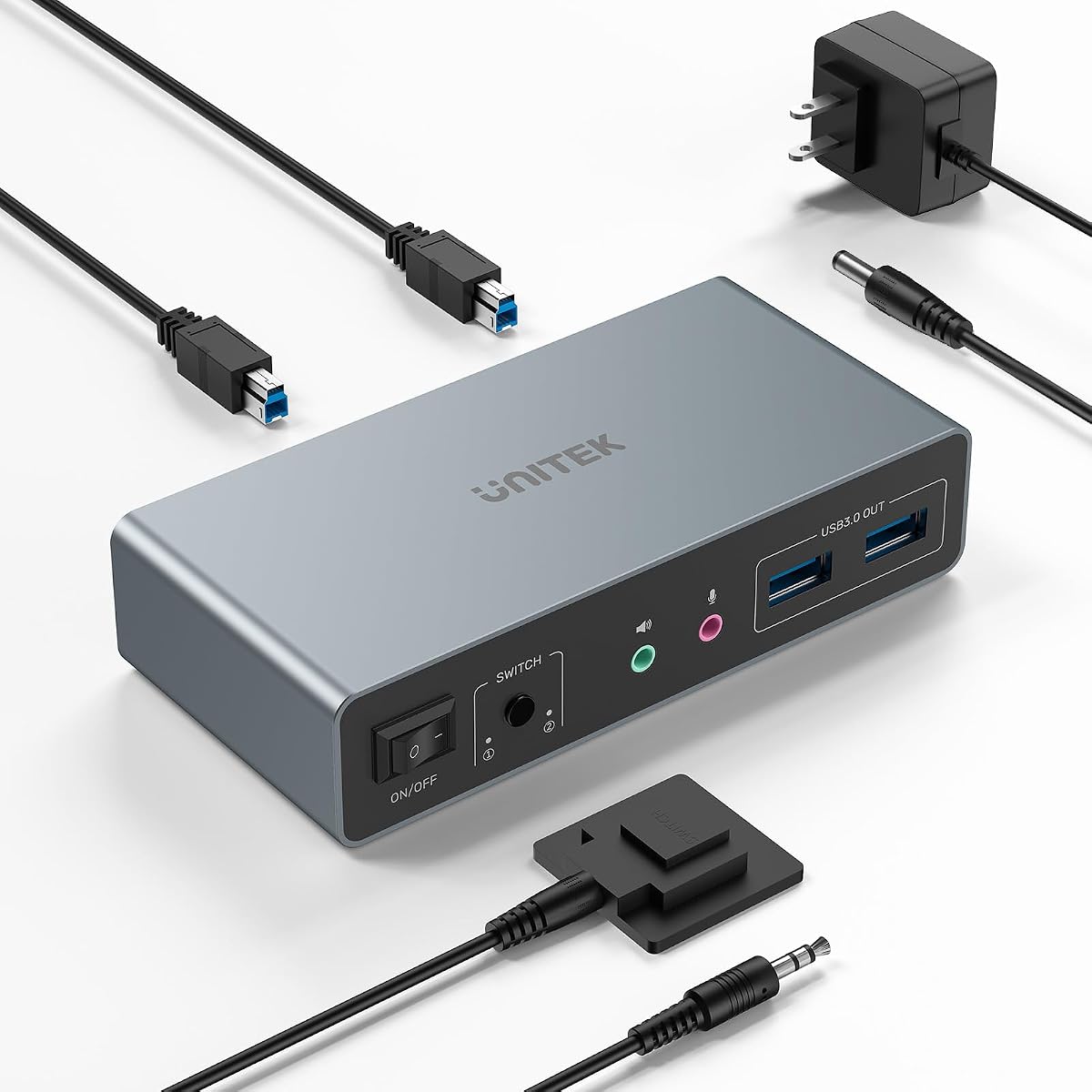
The Unitek KVM Switch supports dual monitor setups with mixed HDMI and DisplayPort inputs. It is a versatile choice for systems using different video interfaces. Users praise its wide compatibility with various operating systems and stable USB peripheral handling.
We may earn a commission when you buy through this link, at no additional cost to you.
This device offers 4K@60Hz resolution support and five USB 3.0 ports for fast data transfer. Switching between computers is easy with one-button or desktop controller options. Its mic and headset ports provide added functionality for communication tasks.
A key limitation is that it is designed for desktop hosts only and does not support laptops. It also requires an external power adapter for stable operation. These constraints are minor for traditional desktop environments.
This switch is ideal for IT professionals managing desktops with mixed video outputs. Its robust feature set makes it a strong contender. It ensures seamless switching without compromising display quality or peripheral performance.
Accommodates both HDMI and DisplayPort inputs for flexible system connections.
Includes USB 3.0 ports and audio jacks for shared keyboard, mouse, and headset use.
We may earn a commission when you buy through this link, at no additional cost to you.
The HDMI KVM Switch enables two computers to share three monitors and USB peripherals. It is designed for workflows requiring extensive screen real estate. Users report smooth 4K@60Hz output with extended or duplicate display options.
We may earn a commission when you buy through this link, at no additional cost to you.
Its 4 USB 3.0 ports support fast data transfer for shared devices like hard drives. Switching is handled via panel buttons or an external wire controller for desk organization. The device includes a power adapter for reliable high-power USB device support.
A limitation is the requirement for each computer to have three HDMI ports to utilize all monitors. Hotkey toggles are not supported. These are acceptable trade-offs for multi-monitor setups prioritizing visual flexibility.
This switch is best suited for traders or designers needing triple display setups. It offers reliable performance for high-resolution work. Its stable power design ensures peripherals function correctly without intermittent disconnects.
Supports three HDMI outputs per computer for expansive multi-screen configurations.
Includes an external power adapter to ensure stable USB device operation.
We may earn a commission when you buy through this link, at no additional cost to you.
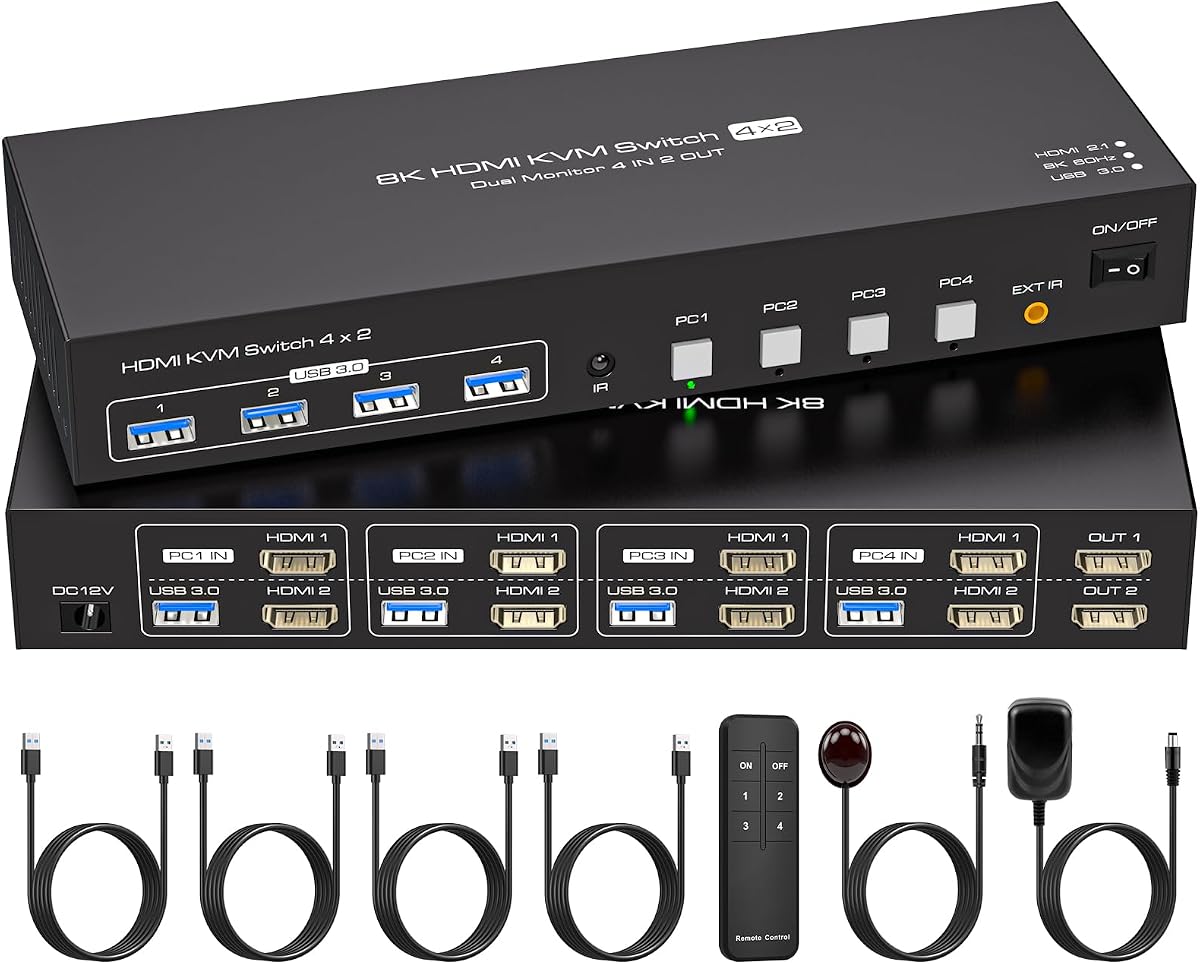
The 4 Port Dual Monitor HDMI KVM Switch controls two monitors across four computers simultaneously. It supports up to 8K resolution for high-fidelity monitoring and displays. Users appreciate its ability to prevent window rearrangement during switching via EDID emulation.
We may earn a commission when you buy through this link, at no additional cost to you.
Switching options include one-touch panel buttons or an infrared remote control. Four USB 3.0 ports allow sharing keyboards, mice, and webcams easily. It is an excellent solution for IT benches requiring centralized multi-PC management.
A limitation is the need for each PC to have two HDMI ports for dual monitors. Hotkey switching is not supported, which may impact workflow speed. These are minor considerations for stable multi-computer setups.
This switch is ideal for network administrators and lab environments managing multiple systems. Its high-resolution support ensures detail clarity. It provides centralized control that reduces physical clutter and improves workflow efficiency.
Connects four computers to two monitors with seamless switching and EDID retention.
Includes an IR remote for convenient switching without physical access to the unit.
We may earn a commission when you buy through this link, at no additional cost to you.
The GL.iNet GL-RM10 Comet Pro redefines remote KVM access using Wi-Fi 6 connectivity. It allows secure, low-latency video streaming and two-way audio interaction. Users can manage systems remotely without being physically present at the desk.
We may earn a commission when you buy through this link, at no additional cost to you.
Its standout feature is the built-in touchscreen interface for easy network setup. The device supports Tailscale for secure encrypted data transfer. This makes it ideal for IT admins managing servers or home labs remotely.
A trade-off is the premium pricing compared to local KVM switches. It requires a stable Wi-Fi network for best performance. These factors are acceptable for users needing remote disaster recovery or hands-on support.
This device is best for remote IT support and secure server management. Its Wi-Fi 6 ensures smooth streaming. It offers unparalleled flexibility for controlling machines across networks without compromising on security or ease.
Allows BIOS access and OS reinstallation from a distance for critical system recovery.
Provides encrypted data transfer between devices without third-party software.
We may earn a commission when you buy through this link, at no additional cost to you.
The UGREEN HDMI KVM Switch manages dual monitors for two computers with ease. It supports 4K@60Hz video output and includes four USB 3.0 ports. Users find it easy to set up without driver installation or software.
We may earn a commission when you buy through this link, at no additional cost to you.
It offers both button and desktop controller switching for desk flexibility. USB-C port compatibility extends its use to modern laptops. The included power adapters ensure compatibility with various regions and power requirements.
A limitation is the lack of EDID emulation which may cause display settings resets. Hotkey toggles are not supported. These are minor issues for users prioritizing straightforward plug-and-play functionality.
This switch is ideal for home offices using dual monitor setups. It ensures smooth switching between PCs. Its robust USB and HDMI support makes it a reliable choice for daily productivity workflows.
Supports two HDMI outputs to extend display across multiple screens.
Features a USB-C port to support modern devices and faster data transfer.
We may earn a commission when you buy through this link, at no additional cost to you.
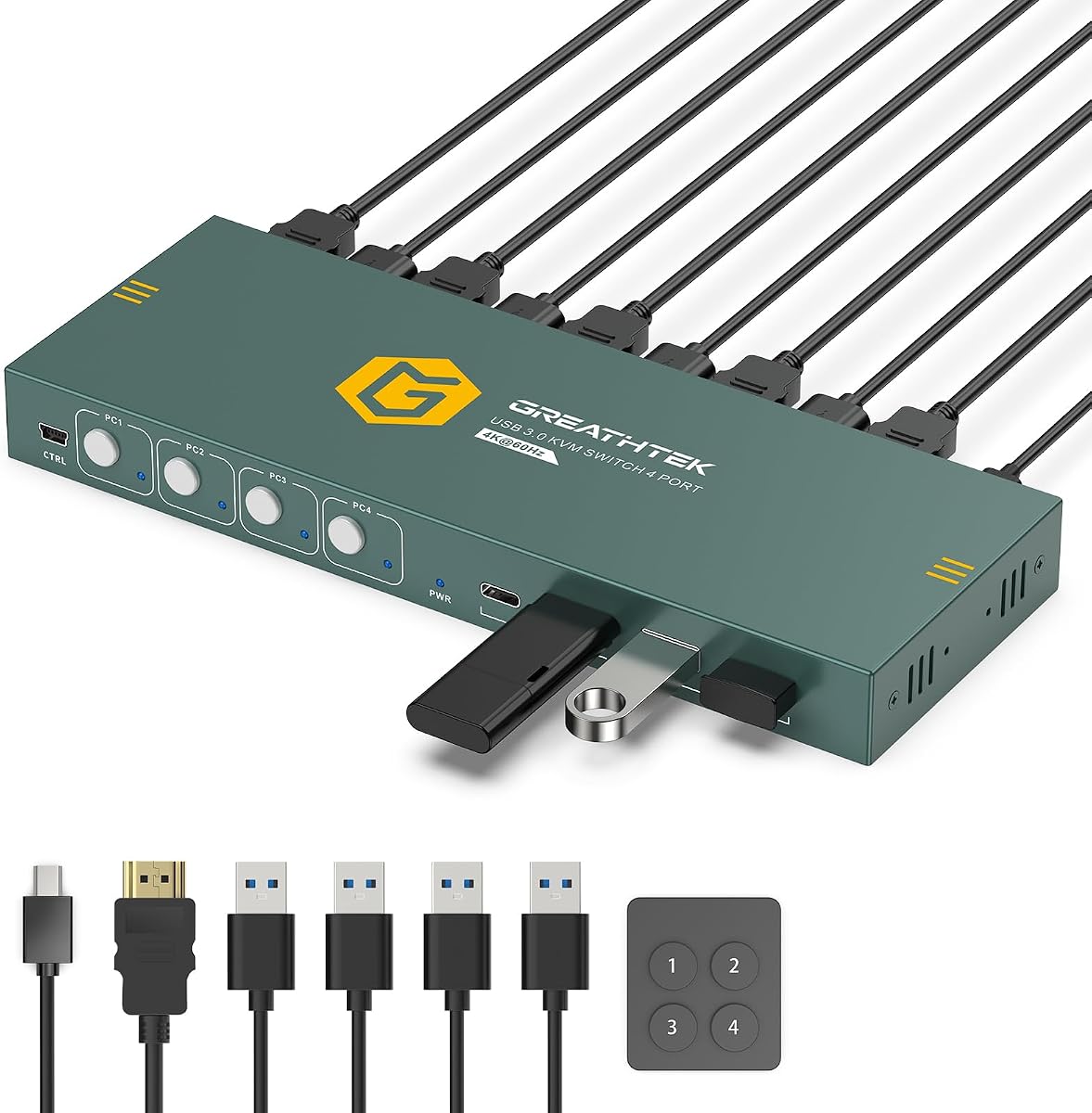
The HDMI KVM Switch controls four computers using a single monitor and keyboard. It simplifies multi-PC workstations by eliminating cable swaps. Users praise its high 4K@60Hz resolution support and fast USB 3.0 peripheral sharing.
We may earn a commission when you buy through this link, at no additional cost to you.
Numbered front-panel buttons and a wired remote allow quick switching between PCs. The adaptive EDID helps match resolution settings automatically. It is ideal for testing benches or labs needing rapid system toggling.
A limitation is support for only one monitor. Hotkey toggles are not supported. These are acceptable for setups prioritizing cost-effective centralized control over multi-display visuals.
This switch is best for test engineers or QA teams managing multiple PCs. It ensures efficient workflow transitions. Its simple design and robust USB support make it a practical choice for IT environments.
Uses PC1 to PC4 buttons to quickly access specific computers via remote or panel.
Automatically detects and matches appropriate resolution settings for connected displays.
We may earn a commission when you buy through this link, at no additional cost to you.
The HDMI KVM Switch is an affordable solution for sharing one monitor between two PCs. It supports 4K@60Hz resolution for high-quality visuals. Users appreciate its compact design and lack of need for an external power supply.
We may earn a commission when you buy through this link, at no additional cost to you.
Switching is handled via body buttons or an extended wired controller for flexibility. USB 2.0 ports support basic peripherals like mice and keyboards. It is a cost-effective choice for home users or basic office tasks.
A trade-off is USB 2.0 speed which may not suit high-speed data transfer. It may have compatibility issues with Mac systems. These are minor for budget-focused setups prioritizing basic functionality.
This switch is best for home users needing simple dual-PC access. Its low price and ease of use offer strong value. It effectively reduces cable clutter without breaking the budget.
Offers essential KVM features at an entry-level price point for budget-conscious users.
Runs directly from USB power without requiring an external adapter or outlet.
We may earn a commission when you buy through this link, at no additional cost to you.
Choosing the right KVM switch depends on your display setup, resolution needs, and peripheral requirements. This guide outlines key factors to consider before purchasing.
Determine how many monitors and computers you need to connect. Some switches support two computers sharing one monitor, while others handle three monitors across two systems. Always ensure your PCs have enough video output ports to match the switch inputs.
Match the KVM switch input and output count to your current hardware to avoid compatibility issues.
Check the maximum resolution and refresh rate supported by the switch. Modern users often require 4K@60Hz or higher. Ensure the switch supports the bandwidth your monitors need for smooth visuals.
Verify the resolution specs align with your monitor capabilities to prevent display errors.
Identify whether your computers use HDMI, DisplayPort, or both. KVM switches often have specific input types. Choose a model that matches your ports or includes adapters.
Select switches with compatible video ports to simplify installation.
Consider how many USB devices you need to share. KVM switches offer two or four USB ports with varying speeds. USB 3.0 allows faster data transfer for external drives compared to USB 2.0.
Pick a KVM with sufficient USB ports and speed to support your peripherals.
KVM switches provide physical buttons, desktop controllers, or hotkeys for switching. Desktop controllers allow remote control placement for cleaner desks. Hotkeys are convenient but not always supported.
Choose a switching method that fits your workflow and desk organization preferences.
Some KVM switches require external power adapters for stable operation, especially with high-power USB devices. Others are bus-powered via USB. Consider your power availability.
Ensure you have access to power sources if the switch needs an external adapter.
Advanced models support remote access via Wi-Fi or Ethernet. This is vital for IT admins managing distant systems. Look for secure transmission protocols.
Evaluate network capabilities if remote monitoring or access is a priority for your setup.
Most switches work with Windows and Linux. Check for Mac or gaming console compatibility if needed. Some switches lack EDID emulation which may cause display issues on macOS.
Confirm OS compatibility to ensure smooth operation across all connected systems.
Connect your computers to the KVM inputs and your monitor and peripherals to the outputs. Use high-quality cables that match the switch ports to ensure stable signals.
Power on the devices and the switch if external power is required. The LEDs should indicate which computer is active. If a screen stays black, check HDMI or DP connections for secure seating.
Keep the KVM unit clean and dust-free. Avoid overloading USB ports with too many high-power devices. If issues persist, restart connected systems and update graphics drivers for compatibility.
Many modern KVM switches support 4K resolution at 60Hz. Some advanced models even support 8K. Always verify the specific resolution limits in the product specs before buying.
Most KVM switches work with Macs but EDID emulation compatibility varies. Check if the switch lists macOS support or if it uses HDMI to avoid signal issues.
Typically, KVM switches support two to four computers and share one set of monitors and peripherals. USB ports allow connecting additional devices like drives and webcams.
Most KVM switches are plug-and-play and do not require drivers. They work directly with the operating system's built-in drivers for USB and video.
Some KVM switches support gaming consoles like PS4 or Xbox via HDMI. Ensure the switch supports HDCP and required resolutions to avoid display restrictions.
The difference lies in the video inputs they accept. HDMI is common for general monitors while DisplayPort supports higher refresh rates. Choose based on your monitor connections.
KVM switches save space by letting you share one monitor setup between multiple PCs. Dual monitors provide more screen real estate for a single system. It depends on your workflow.
Check that all cables are secure and the switch has power. Restarting connected computers often resolves signal handshake issues. Ensure your monitor is set to the correct input.
Our top picks include the UGREEN 8K HDMI Displayport switch for its display versatility and GL.iNet GL-RM10 for remote access. The budget-friendly HDMI KVM switch offers great value for simple setups.
Prioritize resolution support and port types that match your current hardware. Consider switching methods like remote controls if you value desk cleanliness or manage systems remotely.
Remember to verify current prices and availability before purchasing. Regularly updating your setup ensures you maintain efficient workflows without unnecessary cable clutter or signal issues.