
Acer 21.5in FHD 100Hz Office Monitor KB220Q H2bi
4.5Editor score
100Hz refresh rate
Adaptive Sync support
ZeroFrame design
1ms response time
This guide compares the best low wattage PC monitor options for energy efficiency and performance across office and home use cases.
Finding a low wattage PC monitor helps reduce electricity costs while maintaining sharp visuals for daily tasks. Energy efficient displays often include modern panels that balance brightness with power consumption effectively.
We evaluated ten top rated models based on power usage, screen quality, and ergonomic features. Each selection offers distinct benefits for users seeking sustainable computing solutions without sacrificing clarity.
Every pick highlights key specs and real world performance notes to guide your decision. Prices and availability change frequently so check current listings before finalizing your purchase today.
4.5Editor score

4.7Editor score
4.6Editor score
This side by side comparison highlights key differences across all ten monitors including panel type, refresh rate, and connectivity options for informed selection.



This Dell monitor earns top marks for combining speed with efficiency in a compact design. Its 144Hz refresh rate ensures fluid visuals while maintaining low power draw during office hours.
We may earn a commission when you buy through this link, at no additional cost to you.
The IPS panel provides excellent color consistency across wide viewing angles. TÜV Rheinland 3-star certification reduces harmful blue light making it suitable for extended daily use.
Trade-offs include fewer connection ports and no built-in audio. These limitations are acceptable given the focus on visual performance and eye comfort for productivity workflows.
Ideal for users prioritizing smooth motion and eye care in a budget friendly package. It delivers reliable performance for work gaming and multimedia without excessive power consumption.
The 144Hz refresh rate ensures smooth visuals during gaming or scrolling reducing motion blur effectively.
TÜV certification reduces blue light exposure helping prevent eye strain during long work sessions.
We may earn a commission when you buy through this link, at no additional cost to you.
Philips delivers a reliable office monitor with crisp Full HD visuals and low power consumption. The VA panel offers deeper blacks and richer gradients ideal for document work.
We may earn a commission when you buy through this link, at no additional cost to you.
EasyRead mode simulates paper-like viewing reducing eye fatigue during long text sessions. Bezel-free design on three sides supports clean multi-monitor setups boosting desk efficiency.
Lack of Adaptive Sync may affect gaming performance slightly. However this trade-off is minor for users focused on productivity and visual clarity over frame rates.
Perfect for office workers needing consistent color and reduced eye strain. Its minimalist design and energy efficient operation make it a strong choice for business environments.
EasyRead mode optimizes screen settings to mimic paper reducing strain during long document reviews.
Minimal bezels allow clean alignment when using multiple monitors for expanded workspace efficiency.
We may earn a commission when you buy through this link, at no additional cost to you.
This Acer monitor offers excellent value with a 100Hz refresh rate and Adaptive Sync support. Its compact size fits small desks while delivering smooth motion for daily tasks.
We may earn a commission when you buy through this link, at no additional cost to you.
The ZeroFrame design maximizes screen real estate allowing seamless multi-monitor configurations. Fast 1ms response time minimizes ghosting during fast-paced applications or gaming.
Smaller viewing area may limit immersive experiences compared to larger panels. Basic stand lacks height adjustment but VESA compatibility allows flexible mounting solutions.
Ideal for budget-conscious users seeking speed and clarity. It balances performance and affordability making it a smart pick for home offices or student setups.
Delivers solid 100Hz refresh rate and Adaptive Sync at an entry-level price point.
Compact bezel-less frame fits well on smaller desks while maximizing usable display area.
We may earn a commission when you buy through this link, at no additional cost to you.
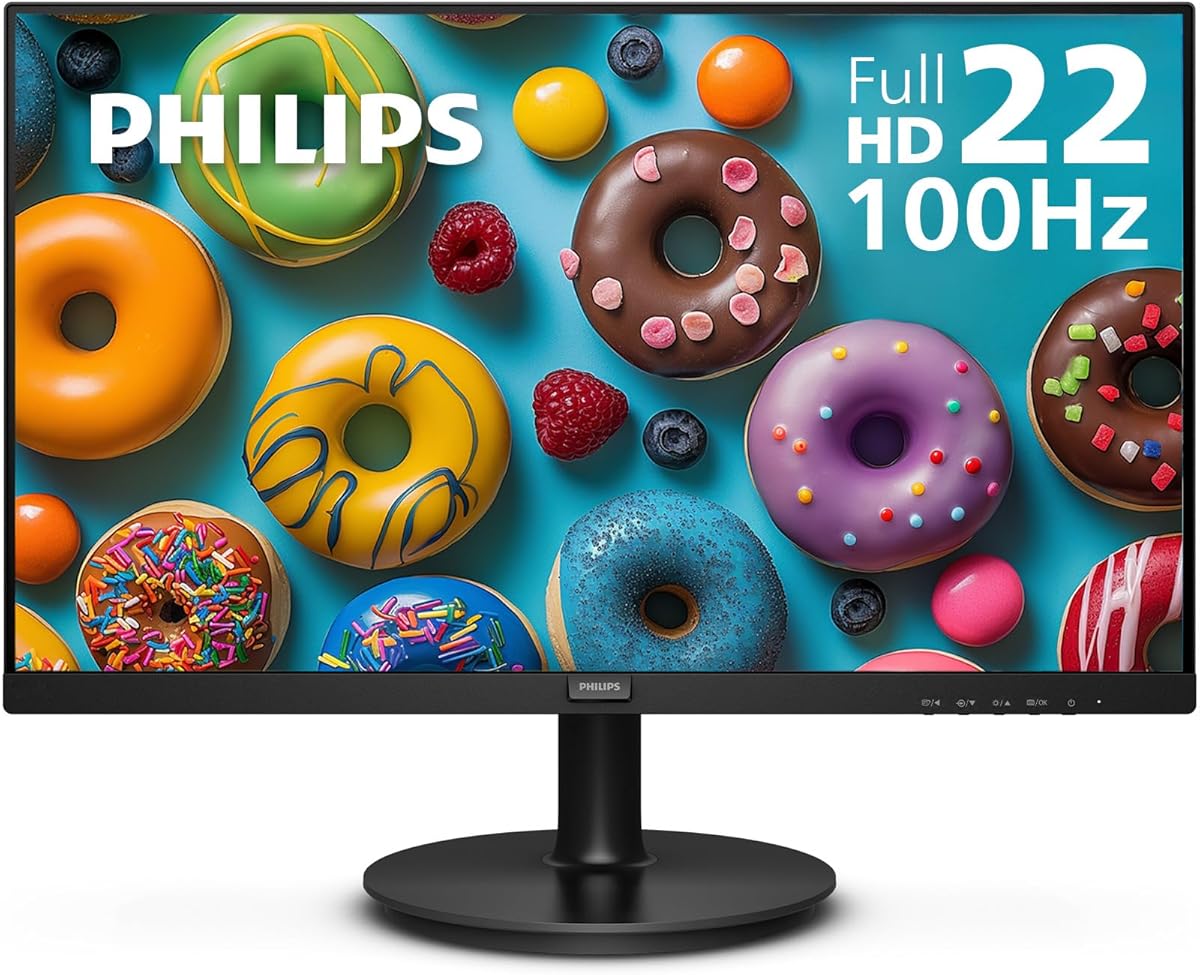
The Philips 22 Inch monitor provides sharp Full HD visuals in a compact form factor. Its 100Hz refresh rate ensures fluid scrolling and video playback for everyday productivity.
We may earn a commission when you buy through this link, at no additional cost to you.
Adaptive Sync technology reduces screen tearing while VA panel delivers deep blacks. Flicker-Free and low blue light features protect eyes during extended work sessions.
Connectivity options are minimal limiting multi-device setups. Lack of speakers requires external audio solution but keeps desk clutter manageable for focused work.
Perfect for small desks needing efficient performance. Its balance of speed clarity and eye care makes it a reliable choice for home office environments.
100Hz refresh rate combined with Adaptive Sync ensures fluid motion without screen tearing.
Flicker-Free and low blue light tech reduces fatigue during prolonged daily usage.
We may earn a commission when you buy through this link, at no additional cost to you.
Amazon Basics offers a feature-packed monitor with HDMI DP and VGA ports plus built-in speakers. Its 120Hz refresh rate and Adaptive Sync support deliver smooth motion for work and play.
We may earn a commission when you buy through this link, at no additional cost to you.
IPS panel ensures accurate colors with 99% sRGB coverage for creative tasks. LowBlue Light and Flicker-Free tech enhance comfort during long usage sessions.
Built-in speakers provide basic audio without extra cables but quality is modest. Stand lacks height or tilt adjustments limiting ergonomic customization options.
Ideal for users needing versatility without spending much. Its comprehensive connectivity and decent visuals make it a practical solution for home and office setups.
Includes HDMI DisplayPort and VGA ports supporting multiple devices and legacy systems.
99% sRGB coverage ensures vibrant visuals suitable for casual creative work and media.
We may earn a commission when you buy through this link, at no additional cost to you.
Sceptre provides a budget friendly gaming monitor with dual HDMI ports and built-in speakers. Its 100Hz refresh rate and 99% sRGB coverage offer smooth visuals and vibrant colors.
We may earn a commission when you buy through this link, at no additional cost to you.
Custom FPS and RTS game modes optimize display settings for specific titles. Blue Light Shift reduces eye strain allowing longer play sessions without discomfort.
Basic stand lacks adjustability and VESA support limits mounting flexibility. However these limitations are acceptable given the price point and feature set.
Great for casual gamers on a budget. It balances performance audio and color quality while maintaining low power consumption for everyday entertainment.
Custom FPS and RTS modes tailor brightness and contrast for immersive gameplay.
Built-in speakers eliminate need for external audio devices during casual gaming.
We may earn a commission when you buy through this link, at no additional cost to you.
ViewSonic delivers a compact 19-inch monitor ideal for tight desks. Its WXGA resolution and low power draw make it suitable for basic office tasks and legacy systems.
We may earn a commission when you buy through this link, at no additional cost to you.
Custom ViewModes optimize gamma contrast and brightness for different tasks. Flicker-Free and Blue Light Filter technologies minimize eye strain during extended use.
Lower resolution may limit detailed work or media viewing. Lack of Adaptive Sync restricts gaming performance but suffices for productivity needs.
Perfect for small offices or entry-level setups. Its space-saving design and reliable performance make it a practical choice for budget conscious users.
Custom ViewModes adjust settings for gaming movies web browsing or text reading.
Includes HDMI and VGA inputs ensuring compatibility with older hardware systems.
We may earn a commission when you buy through this link, at no additional cost to you.
KOORUI offers a smooth 120Hz experience at an affordable price. Its TÜV certified low blue light and flicker-free tech protect eyes during long study sessions.
We may earn a commission when you buy through this link, at no additional cost to you.
Slim bezel design saves desk space while VESA mounting supports flexible setups. Adaptive Sync reduces tearing ensuring fluid motion across documents and video playback.
Lack of DisplayPort limits high refresh output options for some devices. Basic stand lacks tilt adjustment but VESA support allows external mounting solutions.
Ideal for students needing eye comfort and speed. Its reliable performance and budget friendly pricing make it a top pick for dorm rooms.
TÜV Rheinland certification ensures low blue light and flicker-free operation for safety.
Slim profile maximizes desk real estate making it perfect for small dorm desks.
We may earn a commission when you buy through this link, at no additional cost to you.
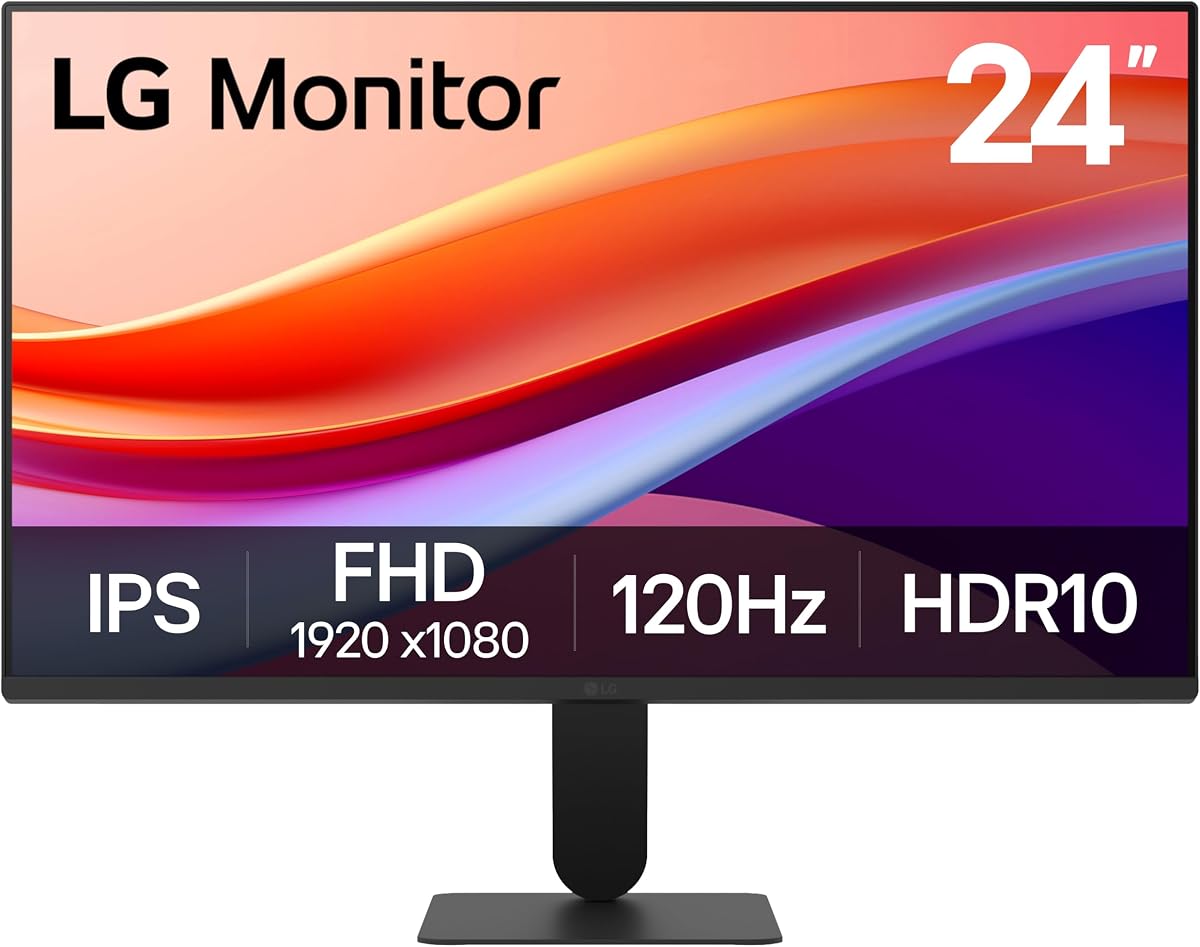
LG delivers vivid visuals with IPS accuracy and HDR10 support. Its 120Hz refresh rate and 1ms MBR ensure sharp motion for both creative work and gaming.
We may earn a commission when you buy through this link, at no additional cost to you.
99% sRGB coverage provides consistent color for design projects. Borderless design enhances focus while Reader Mode reduces blue light for extended reading.
Stand lacks height adjustment limiting ergonomic customization. Port selection is minimal but HDMI suffices for most modern connections.
Ideal for creatives seeking vibrant color and fluid motion. Its balance of visual fidelity and eye care makes it a strong choice for design workflows.
99% sRGB coverage ensures reliable color reproduction for creative projects.
1ms Motion Blur Reduction keeps fast action sharp without ghosting or blur.
We may earn a commission when you buy through this link, at no additional cost to you.
SANSUI focuses on eye care with anti-flicker and low blue light tech. Its 120Hz refresh rate and 100% sRGB accuracy deliver smooth motion and precise color.
We may earn a commission when you buy through this link, at no additional cost to you.
Anti-glare coating reduces reflections during long sessions. Dual HDMI ports support multi-device setups while tilt adjustment improves viewing comfort.
Lack of speakers requires external audio. Basic stand limits ergonomic flexibility but keeps the design minimal and affordable.
Perfect for users prioritizing eye health. Its comfort features and reliable performance make it a practical choice for extended daily work.
Anti-flicker and low blue light features minimize eye strain during long sessions.
Surface coating reduces glare ensuring clear visibility in brightly lit environments.
We may earn a commission when you buy through this link, at no additional cost to you.
Selecting the right low wattage monitor involves balancing power efficiency with performance and ergonomics for your needs.
VA panels offer higher contrast and lower power draw while IPS delivers better color accuracy and viewing angles. Consider your primary tasks like reading or design when choosing.
VA is ideal for dark room use while IPS suits color critical work.
Higher refresh rates like 100Hz or 120Hz provide smoother scrolling and motion but may use slightly more power. Look for adaptive sync to balance efficiency and performance.
Aim for at least 75Hz to reduce eye strain during daily use.
Flicker-free and low blue light certifications reduce fatigue during long sessions. TÜV Rheinland standards validate these claims for reliable comfort.
Prioritize monitors with these features for all day use.
Ensure the monitor includes HDMI or DisplayPort inputs matching your devices. Some budget models may lack audio outputs or multiple ports.
Check for dual HDMI or USB-C if you connect multiple devices.
Smaller screens like 19 or 22 inches consume less power while still delivering sharp visuals. Larger 24-inch panels offer more workspace without excessive energy draw.
Match size to desk space and viewing distance for comfort.
VESA compatibility allows flexible mounting on arms or walls freeing desk space. This ergonomic upgrade can improve posture and workspace organization.
Verify mounting patterns if you plan to use a monitor arm.
Look for energy efficiency ratings or wattage specs in product details. LED-backlit models generally use less power than older technologies.
Energy Star certified monitors ensure lower environmental impact.
Longer warranties indicate manufacturer confidence and protect your investment. Check for response times and coverage terms before purchasing.
Prioritize brands with responsive support for issue resolution.
Place the monitor at eye level and about an arm's length away to reduce neck and eye strain. Adjust tilt or mount height to maintain a neutral viewing posture.
Clean the screen with a soft microfiber cloth and avoid harsh chemicals that can damage anti-glare coatings. Turn off the monitor before wiping to prevent static buildup.
Enable power saving modes and reduce brightness during low light conditions to extend panel life and save energy. Proper care ensures longevity and consistent performance.
Not necessarily. Modern LED panels deliver crisp visuals while using less power. Features like high refresh rates and adaptive sync maintain performance without excessive energy consumption.
Most 24-inch monitors use between 20 to 40 watts during normal operation. Energy-efficient models can operate under 30 watts while maintaining brightness and clarity.
Higher refresh rates may increase power draw slightly but modern efficient. minimize this impact. Adaptive sync technology ensures smooth motion without unnecessary energy expenditure.
Yes certifications like TÜV Rheinland validate low blue light and flicker-free claims. These features reduce eye strain during long sessions improving overall user comfort.
Yes many support 100Hz or higher refresh rates with adaptive sync. They deliver smooth gameplay while keeping power consumption lower than dedicated high-end gaming panels.
Most models include standard VESA 100x100mm mounting patterns. This allows flexible setups on arms or walls for better ergonomics and desk organization.
Enable built-in power saving modes and adjust brightness to match room lighting. Turn off the monitor during breaks to extend panel lifespan and save energy.
Most monitors come with 1 to 3-year warranties covering panel defects. Check for support terms and response times before purchasing for peace of mind.
This guide highlights top monitors balancing efficiency performance and comfort for diverse needs. From Dell's speed to KOORUI's affordability each option offers distinct benefits.
Prioritize eye care features and refresh rates based on your daily tasks. Compact sizes work well for small spaces while larger panels suit detailed work.
Prices and availability change frequently so verify current listings before buying. Choose a model that fits your workspace and long-term usage goals.